AES256GCM1G-IP Demo Instruction
2 FPGA development board setup
4 Command detail and testing result
4.1 Set encryption/decryption key
4.2 Set encryption/decryption IV
4.3 Set AAD for Encryption/Decryption
This document describes the instruction to demonstrate the operation of AES256GCM1G-IP on FPGA development boards. In the demonstration, AES256GCM1G-IP, called AESGCM-IP, is used to encrypt and decrypt data between two memories in FPGA and provide authentication tag. User can fill memory with Additional Authenticated Data (AAD), DataIn patterns, set encryption/decryption key, Initialization Vector (IV), and control test operation via Nios Command Shell.
1 Environment Setup
To operate AESGCM-IP demo, please prepare following test environment.
1) FPGA development board
- Agilex 5 E-Series Sulfur board.
2) Test PC.
3) Micro USB cable for JTAG connection between FPGA board and Test PC.
4) Quartus programmer for programming FPGA and Nios command shell, installed on PC.
5) Demo configuration file (To download this file, please visit our web site at www.design-gateway.com).
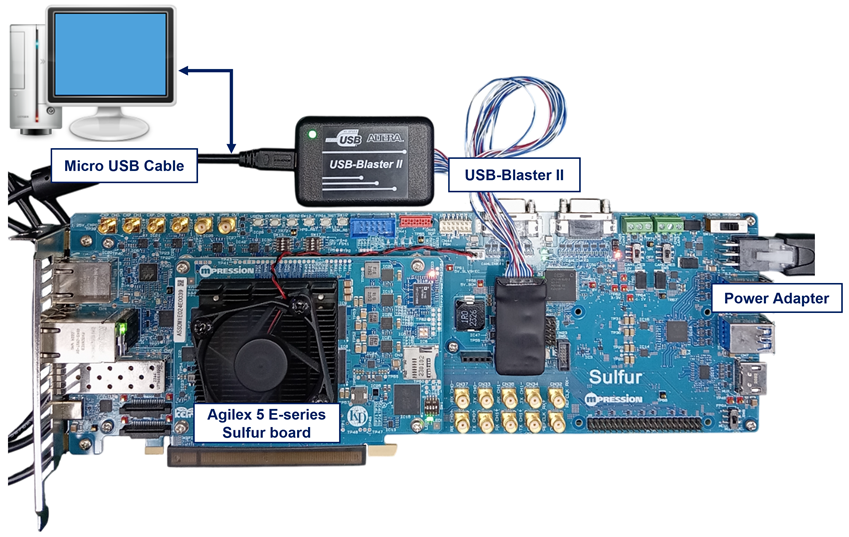
Figure 1 AESGCM-IP demo environment on Agilex 5 E-Series Sulfur board
2 FPGA development board setup
1) Make sure power switch is off and connect power supply to FPGA development board.
2) Connect USB cables between FPGA board and PC via micro-USB ports.
3) Turn on power switch for FPGA board.
4) Open Quartus Programmer to program FPGA through USB-1 by following step.
i. Click “Hardware Setup…” to select
− USB-BlasterII [USB-1]
ii. Click “Auto Detect” and select FPGA number.
iii. Select FPGA device icon.
iv. Click “Change File” button, select SOF file in pop-up window and click “open” button.
v. Check “program”.
vi. Click “Start” button to program FPGA.
vii. Wait until Progress status is equal to 100%.
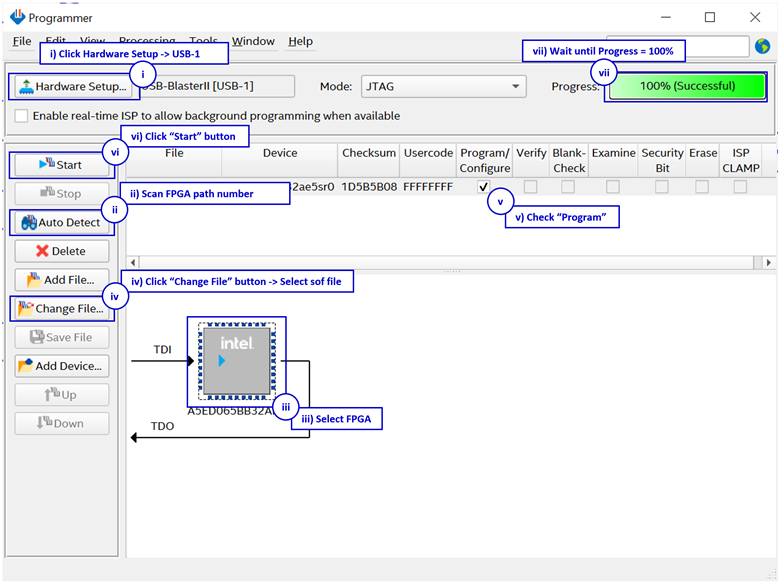
Figure 2 Program Device
3 Nios Command Shell
User can fill RAMs with AAD, plain or cipher data patterns, set encryption/decryption key, IV and control test operation via Nios Command Shell. When configuration is completed, AESGCM-IP demo command menu will be displayed as shown in Figure 3. The detailed information of each menu is described in topic 4.
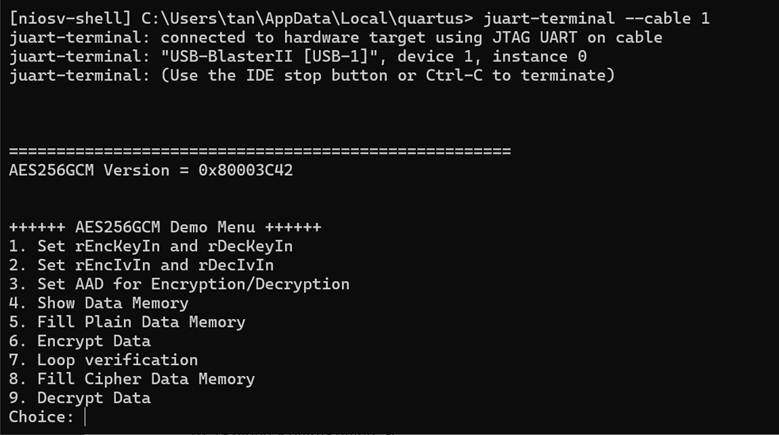
Figure 3 Nios V Command Shell
4 Command detail and testing result
4.1 Set encryption/decryption key
Step to set encryption key and decryption key as follows
a) Select “Set rEncKeyIn and rDecKeyIn”.
b) Current encryption key will be displayed on serial console as shown in Figure 4.
c) Set new encryption key: User is allowed to input new key in hex format or press “enter” to skip setting new key. Then the current encryption key is printed again.
d) Current decryption key will be displayed on serial console.
e) Set new decryption key: User is allowed to input new key in hex format or press “enter” to use rEncKeyIn as rDecKeyIn. Then the current decryption key is printed again.
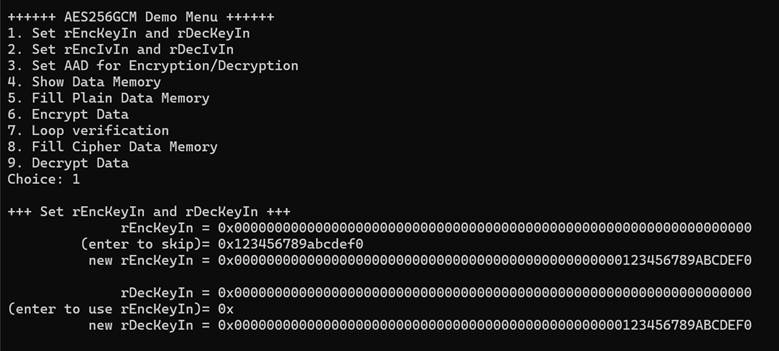
Figure 4 rEncKeyIn and rDecKeyIn setting example
4.2 Set encryption/decryption IV
Step to set encryption IV and decryption IV as follows
a) Select “Set rEncIvIn and rDecIvIn”.
b) Current encryption IV will be displayed on serial console as shown in Figure 5.
c) Set new encryption IV: User is allowed to input new IV in hex format or press “enter” to skip setting new IV. Then the current encryption IV is printed again.
d) Current decryption IV will be displayed on serial console.
e) Set new decryption IV: User is allowed to input new IV in hex format or press “enter” to use rEncIvIn as rDecIvIn. Then the current decryption IV is printed again.
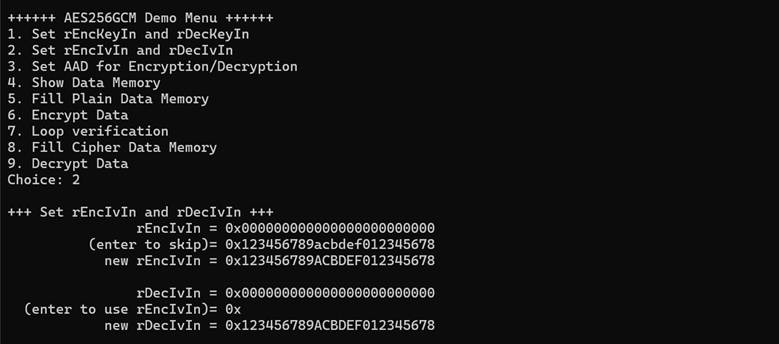
Figure 5 IvIn setting example
4.3 Set AAD for Encryption/Decryption
Step to set AAD for encryption and decryption as follows
a) Select “Set AAD for Encryption/Decryption”.
b) Input the desired length of AAD in byte. This length will be used for both encryption and decryption. In case of zero-length AAD operation, user can input “0” or press “enter” then end process of this menu. In case of non-zero-length AAD, user can select AAD pattern for encryption and decryption as shown in Figure 6.
c) There are four pattern to fill AAD memory.
1) zero pattern
2) 8-bit counter
3) 16-bit counter
4) 32-bit counter
d) AAD memory will be filled with selected pattern by the number of AAD and zero-padding to become 128-bit padded data.
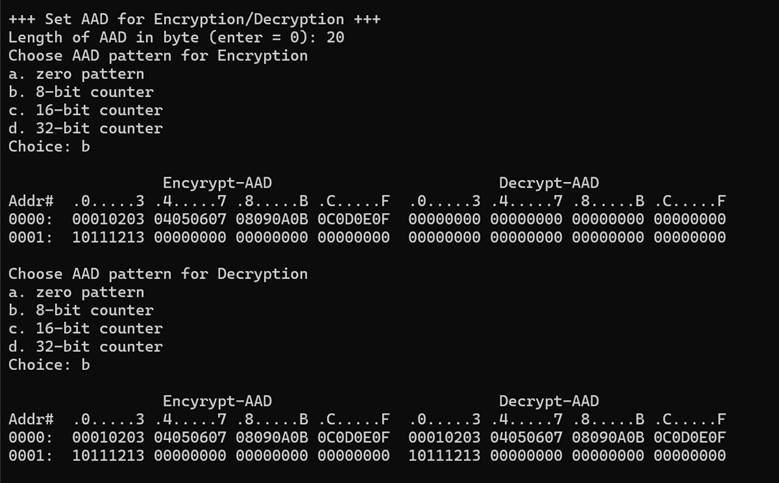
Figure 6 Displayed data when set AAD pattern
4.4 Show Data Memory
To show AAD and data in memory, user can select “Show Data Memory”. AAD will be shown by the number of AAD that user already set in menu “Set AAD for Encryption/Decryption”. User can input the desired length of data in byte to show. Both plain data and cipher data will be displayed in table-form as shown in Figure 7.
User can press “enter” key to skip putting the number of data, then serial console will display 80 bytes of plain data and cipher data at address 0x0000-0x004F in five rows of table as shown in Figure 8.
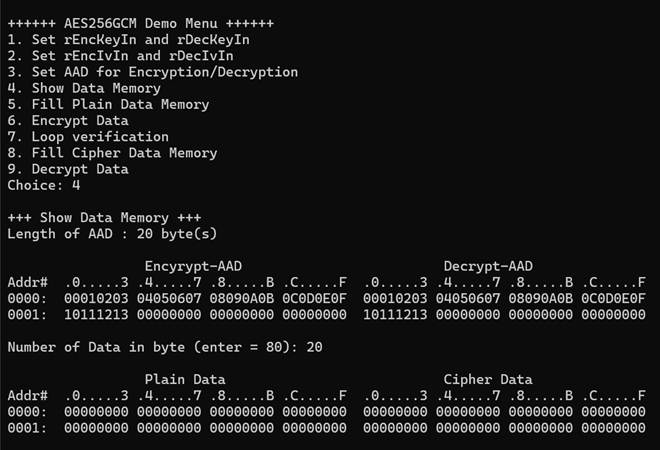
Figure 7 Displayed data when input the desired length of data
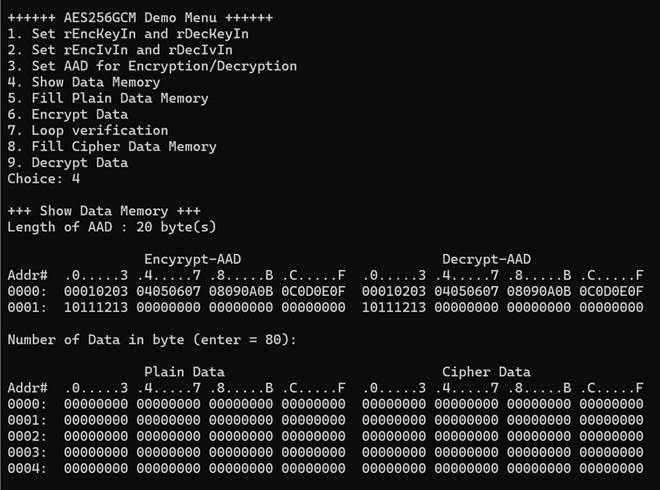
Figure 8 Displayed data when press “enter” key
4.5 Fill Plain Data Memory
Step to fill plain data in memory as follows
a) Select “Fill Plain Data Memory”.
b) Input the desired length of data in byte. In case of zero-length plain data operation, user can input “0” or press “enter” on keyboard then end process of this menu. In case of non-zero-length plain data, user can select data pattern.
c) There are four pattern to fill memory.
1) zero pattern
2) 8-bit counter
3) 16-bit counter
4) 32-bit counter
d) Whole plain-data memory is filled with selected pattern by the number of input data length and zero-padding to become 128-bit padded data as displayed in Figure 9.
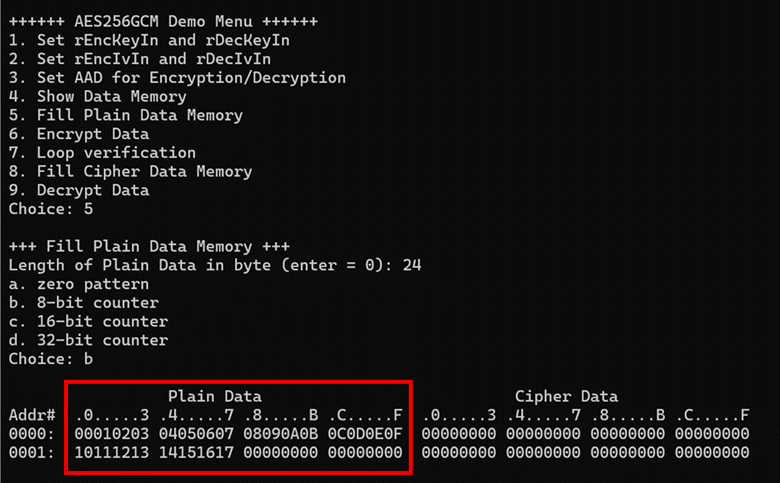
Figure 9 Displayed data when set plain data length and data pattern
4.6 Encrypt
Select “Encrypt” to encrypt plain data in memory. Current length of AAD, encryption AAD and length of plain data are printed on serial console. When the encryption process is finished, both plain data and cipher data will be displayed in table-form and 128-bit encryption tag will be printed as shown in Figure 10.
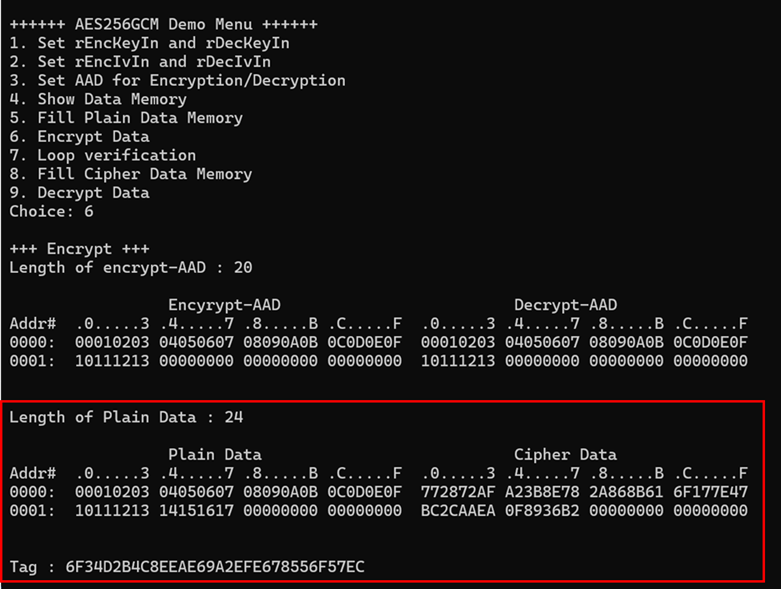
Figure 10 Serial console after finished encryption process
4.7 Data Loop verification
Select “Loop verification”, to check both encryption and decryption. In this menu, plain data in memory will be encrypted with current encryption key, IV and AAD and be stored in cipher data memory which is already cleared.
Then decryption is started, the cipher data will be decrypted with current decryption key, IV and AAD which user could set to be different from encryption parameters. The decrypted data will be stored in plain data memory which is already cleared.
If the decrypted data does not match with plain data input, the first address of the decrypted data which does not match and the data in memory will be printed in table-form on serial console as shown in Figure 11.
If the decryption tag does not match with encryption tag, both encryption tag and decryption tag will be printed on serial console as shown in Figure 12.
If the decrypted data and decryption tag match with plain data input and encryption tag, respectively, “Loop verification succeeded.” is printed on serial console as shown in Figure 13.
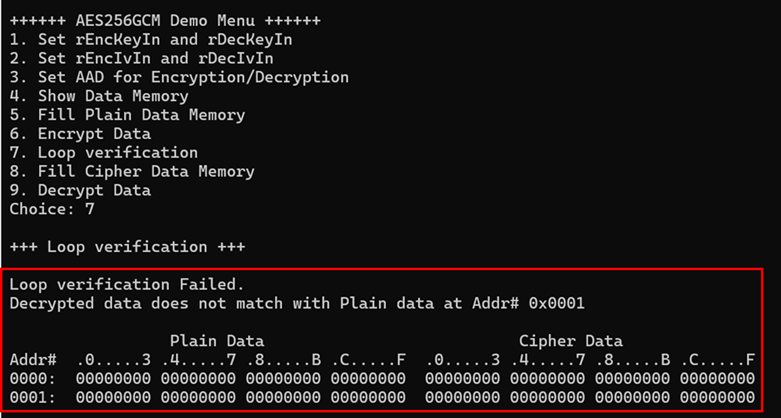
Figure 11 Serial console after loop verification is failed with data error
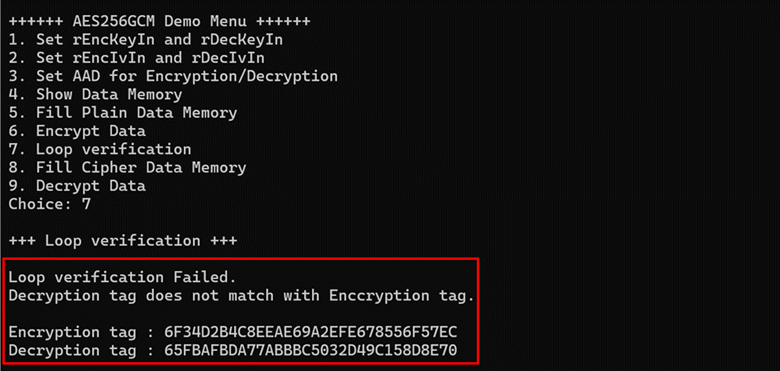
Figure 12 Serial console after loop verification is failed with tag error
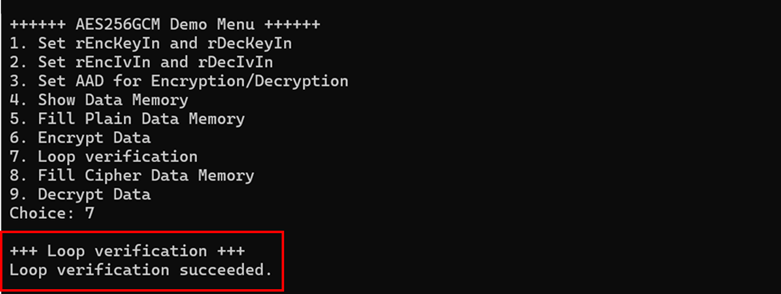
Figure 13 Serial console after loop verification is succeeded
4.8 Fill Cipher Data Memory
Step to fill cipher data in memory as follows
a) Select “Fill Cipher Data Memory”.
b) Input the desired length of data in byte. In case of zero-length cipher data operation, user can input “0” or press “enter” on keyboard then end process of this menu. In case of non-zero-length cipher data, user can select data pattern.
c) There are four pattern to fill memory.
1) zero pattern
2) 8-bit counter
3) 16-bit counter
4) 32-bit counter
d) Whole cipher-data memory is filled with selected pattern by the number of input data length and zero-padding to become 128-bit padded data as displayed in Figure 14.
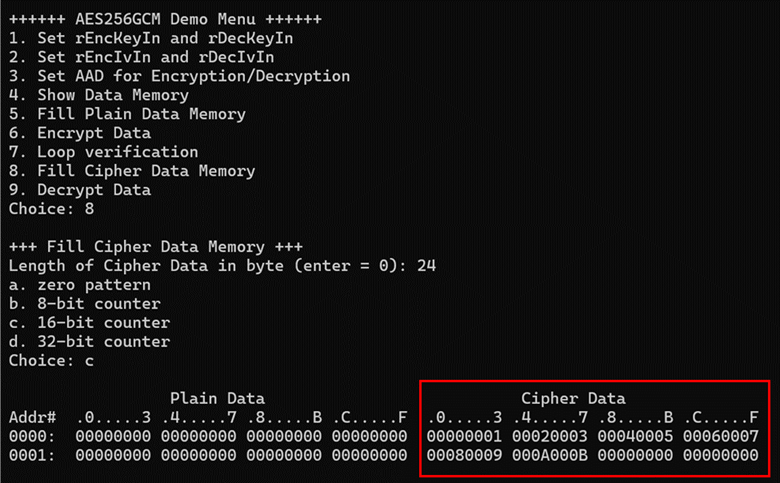
Figure 14 Displayed data when set cipher data length and data pattern
4.9 Decrypt
Select “Decrypt” to decrypt cipher data in memory. Current length of AAD, decryption AAD and length of cipher data are printed on serial console. When the decryption process is finished, both plain data and cipher data will be displayed in table-form and 128-bit decryption tag will be printed as shown in Figure 15.
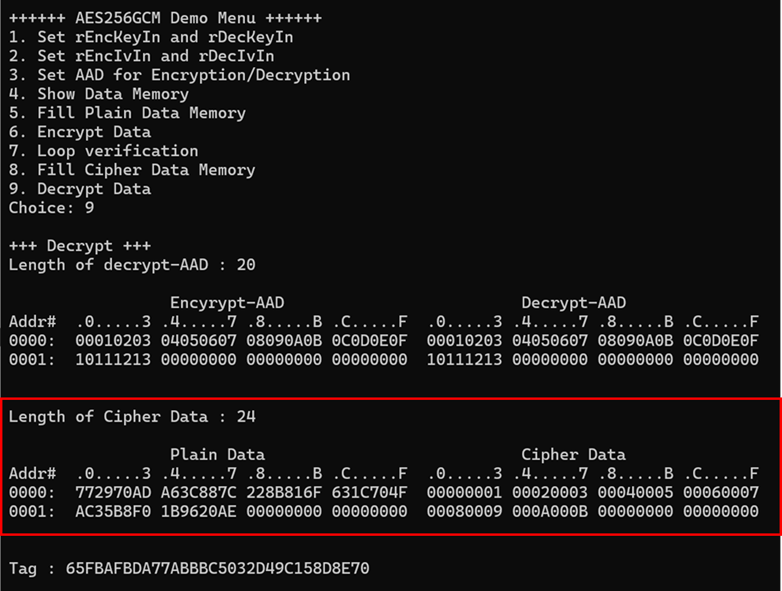
Figure 15 Serial console after finished decryption process
5 Revision History
|
Revision |
Date (D-M-Y) |
Description |
|
1.00 |
8-Dec-25 |
Initial version release |