ChaCha20Poly1305-IP Demo Instruction
4 Command Details and Test Results
1 Environment Setup
To operate ChaCha20Poly1305-IP demo, please prepare the following test environment.
1) FPGA development board.
2) Test PC.
3) Micro USB cable for JTAG connection between FPGA board and Test PC.
4) Micro USB cable for UART connection between FPGA board and Test PC.
5) Vivado tool for programming FPGA installed on Test PC.
6) Serial console software such as TeraTerm installed on PC. The setting on the console is Baudrate=115200, Data=8-bit, Non-parity and Stop=1.
7) Demo configuration file (To download this file, please visit our web site at www.design-gateway.com).
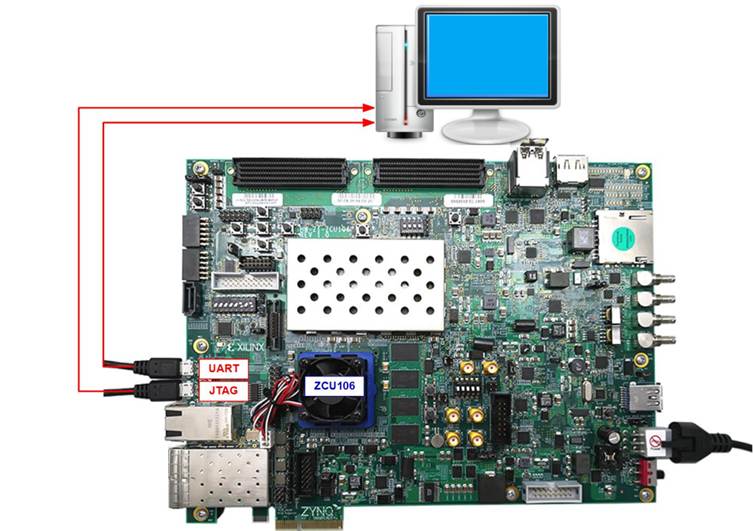
Figure 1 ChaCha20Poly1305-IP demo environment on ZCU106 board
2 ZCU106 Board Setup
1) Make sure power switch is off and connect power supply to FPGA development board.
2) Connect USB cable between PC and JTAG micro USB port.
3) Power on the system.
4) Download configuration file and firmware to FPGA board by following steps:
a) Open Vivado TCL shell.
b) Change current directory to download folder which includes demo configuration file.
c) Run bat script to program bit file, as shown in Figure 2.
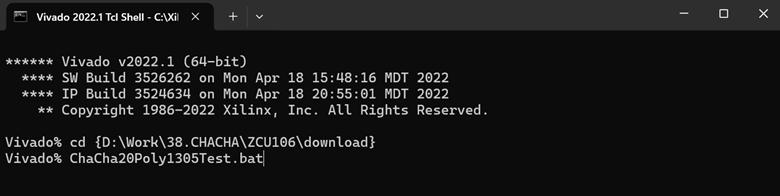
Figure 2 Program device on ZCU106
3 Serial Console
User can fill RAMs with AAD, IV, Input Data, and encryption/decryption key via serial console. The current parameters are shown together with the available options in the main menu as shown in Figure 3. The details of each menu are described in topic 4.
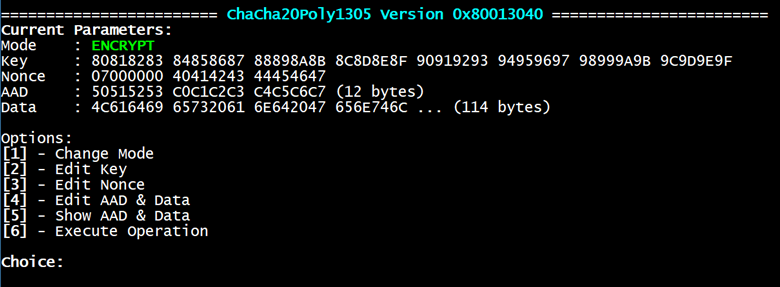
Figure 3 Serial console main menu
4 Command Details and Test Results
4.1 Change Mode
Select “Change Mode” from the main menu to switch the ChaCha20Poly1305-IP operation mode. The available options are shown in Figure 4.
1) ENCRYPT: Encrypts Input Data stored in memory.
2) DECRYPT: Decrypts Input Data stored in memory.
3) BYPASS: Bypasses Input Data stored in memory without encryption or decryption.
4) SPEED TEST: Evaluates the computational efficiency of the ChaCha20Poly1305-IP when processing large volumes of data.
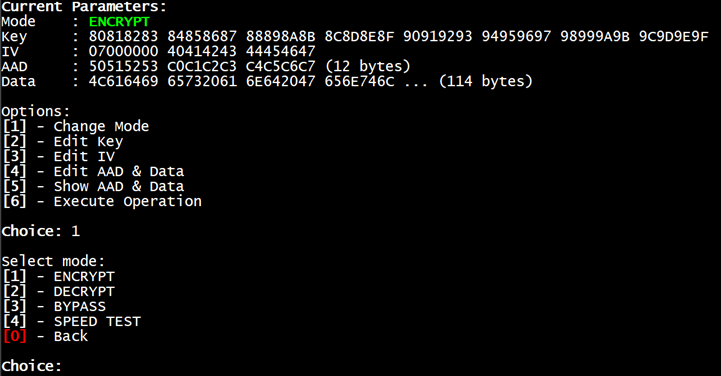
Figure 4 Change mode menu
4.2 Edit Key
The steps to edit key are as follows:
1) Select “Edit Key”.
2) Enter up to 256-bit key value in hexadecimal format as shown in Figure 5.
3) After pressing Enter, the new key value will be updated and displayed in the main menu.
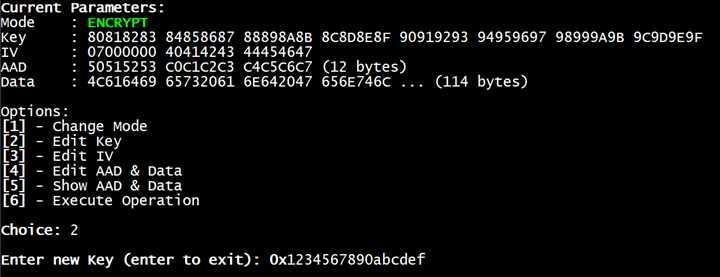
Figure 5 Key setting example
4.3 Edit IV
The steps to edit IV are as follows:
1) Select “Edit IV”.
2) Enter up to 96-bit IV value in hexadecimal format as shown in Figure 6.
3) After pressing Enter, the new IV value will be updated and displayed in the main menu.
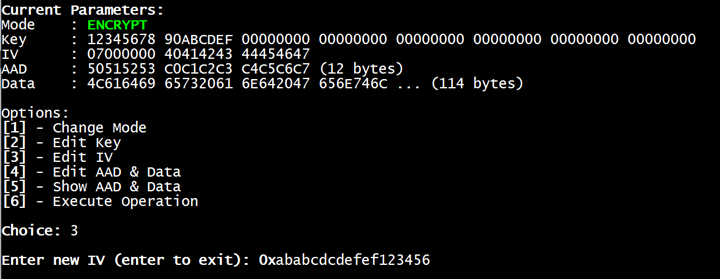
Figure 6 IV setting example
4.4 Edit AAD & Data
Select “Edit AAD & Data” to update AAD and Data in memory. Users must update both AAD and Data in this menu. Editing differs by mode:
Speed Test Mode:
1) Enter AAD size (bytes) and press Enter.
2) Enter Data size (bytes) as shown in Figure 7 and press Enter.
3) After both inputs, the new sizes are updated and shown in the main menu.
Other Modes:
1) Enter AAD value in hexadecimal and press Enter.
2) Enter Data value in hexadecimal as shown in Figure 8 and press Enter.
3) After both inputs, the new values and sizes are updated and shown in the main menu.
Notes:
· Combined AAD + Data size cannot exceed 16 KB.
· In Decrypt mode, Data is treated as Ciphertext; in Encrypt mode, it is Plaintext.
· In Speed Test mode, the entered AAD size and Data size can be any value; the IP rounds each size up to the nearest 16-byte alignment.
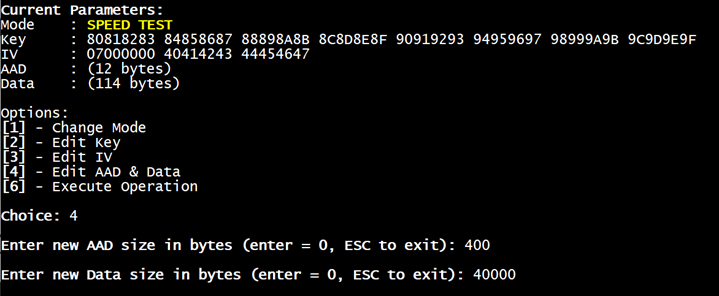
Figure 7 AAD & Data setting example in Speed Test mode
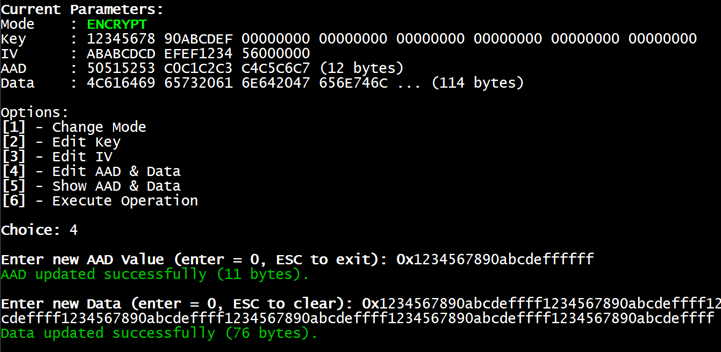
Figure 8 AAD & Data setting example in other modes
4.5 Show AAD & Data
The steps to show AAD & Data in memory are as follows:
1) Select “Show AAD & Data”
2) Enter the number of bytes to display (or press Enter to display all).
3) The AAD and Data values are shown in table form as shown in Figure 9.
4) After pressing Enter, the console will return to the main menu.
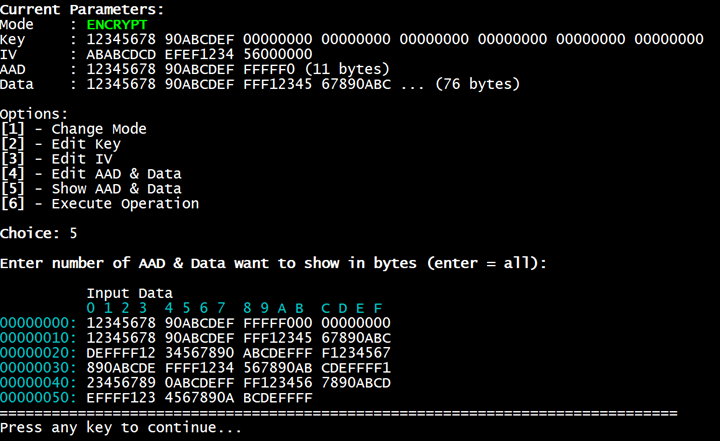
Figure 9 Show AAD & Data example
4.6 Execute Operation
Select “Execute Operation” to start the operation in the currently selected mode.
4.6.1 Encrypt
In Encrypt mode, the IP uses the current key and IV to encrypt the Input Data in memory. The Output Data (Ciphertext) and 128-bit authentication tag are displayed as shown in Figure 10.
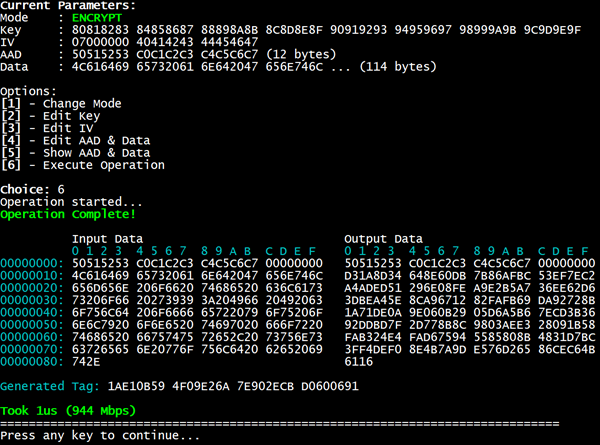
Figure 10 Encryption mode result
4.6.2 Decrypt
In Decrypt mode, the IP uses the current key and IV to decrypt the Input Data in memory. The Output Data (recovered Plaintext) and the 128-bit authentication tag are displayed as shown in Figure 11.
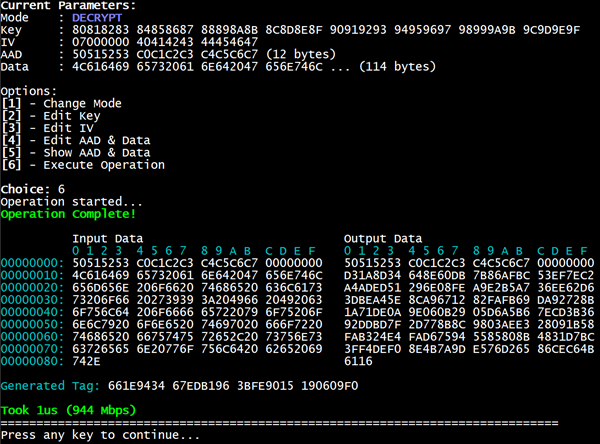
Figure 11 Decryption mode result
4.6.3 Bypass
In Bypass mode, the IP simply passes the Input Data from memory to output memory without any encryption or decryption. Both Input Data and Output Data are displayed as shown in Figure 12.
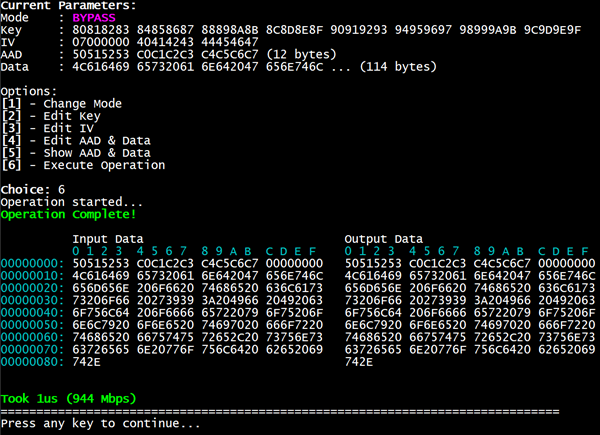
Figure 12 Bypass mode result
4.6.4 Speed Test
In Speed Test mode, the IP ignores the actual AAD and Data values. Only the entered sizes, together with the current key and IV, are used to run the encryption process. The console shows the execution time and calculated throughput, as shown in Figure 13.
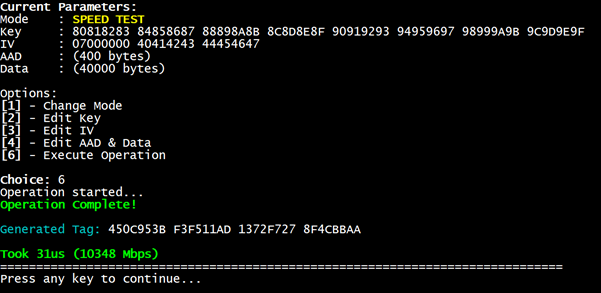
Figure 13 Speed Test mode result
5 Revision History
|
Revision |
Date (D-M-Y) |
Description |
|
1.01 |
31-Jul-26 |
Revise to improve performance version |
|
1.00 |
14-Oct-25 |
Initial version release |