2 FPGA Development Board Setup
3 Running the Demo via Serial Console
4.1 Custom ECDSA Parameter Verification
4.2 NIST Test Vector Verification
4.3 PEM Certificate Verification
This document provides the instruction for demonstrating the operation of the ECDSA256 Verification IP core (ECDSA256V-IP) on FPGA evaluation board. In this demonstration, the ECDSA256V-IP is used to verify a digital signature signed with the NIST P-256 curves. Users can verify a signature by providing the required input parameters, test compliance using NIST test vectors, and verify SSL certificates as a practical example of real-world usage.
1 Environment Setup
To operate ECDSA256V demo, please prepare following test environment.
1) FPGA development board (KR 260).
2) Test PC.
3) Micro USB cable for JTAG and UART connection connecting between board and Test PC.
4) Vivado tool for programming FPGA installed on Test PC.
5) Serial console software such as TeraTerm installed on PC. The setting on the console is Baudrate=115200, Data=8-bit, Non-parity and Stop=1.
6) Demo configuration file (To download these files, please visit our web site at www.design-gateway.com)
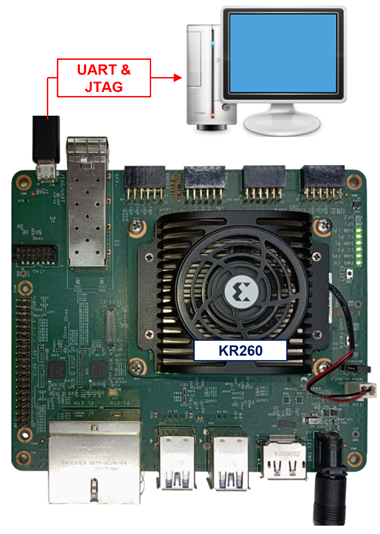
Figure 1 ECDSA256V demo environment on KR260 board
2 FPGA Development Board Setup
1) Make sure power switch is off and connect power supply to FPGA development board.
2) Connect USB cable between PC to JTAG micro USB port.
3) Power on the system.
4) Download configuration file and firmware to FPGA board by following step
i) Open Xilinx XSCT.
ii) Change current directory to download folder which includes demo configuration file.
iii) Run tcl script to program bit file, as shown in Figure 2.

Figure 2 KR260 board setup
3 Running the Demo via Serial Console
Users can select test mode via serial console displayed in Figure 3. The detailed information of each menu is described in the next topic.
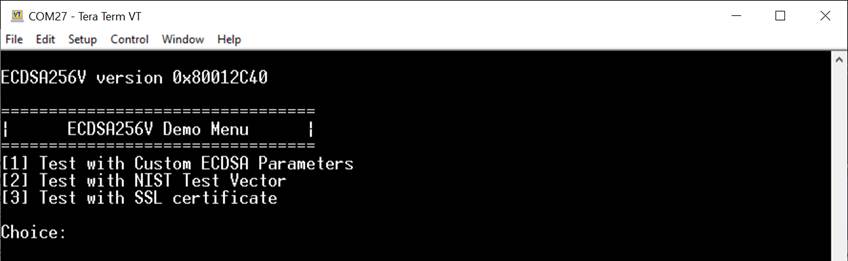
Figure 3 ECDSA256V demo console
4 Test Modes
4.1 Custom ECDSA Parameter Verification
In this test mode, users can verify a signature by manually entering ECDSA parameters through the console menu: Set Qx, Set Qy, Set r, Set s, and Set hash.
Users may input new parameters in hexadecimal format or press ENTER to skip, in which case the current parameter value will be reused and displayed again.
Once the parameters are set as desired, selecting Perform ECDSA Verification starts the ECDSA256V process to verify the signature using the current parameters and displays the verification result, as shown in Figure 4.
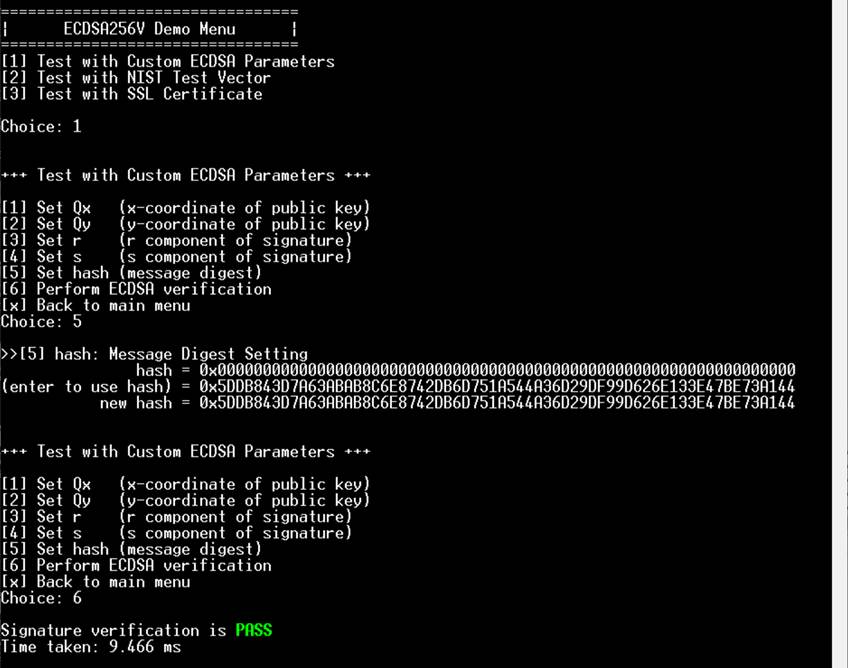
Figure 4 Custom parameters test mode
4.2 NIST Test Vector Verification
In this test mode, users can validate the ECDSA256V-IP using standardized NIST test vectors in RSP format. The system receives input line-by-line through the terminal, following the structure used in the NIST test vector files.
User can copy the test vectors in RSP directly from their source and paste them into the terminal. During data transmission, an on-screen spinner will rotate to indicate that the file transfer is in progress. Users must wait for the file transfer to complete, indicated when the spinner stops rotating, and then press Ctrl+X to signal the end of the file.
CAUTION: Pressing Ctrl+X while the file transfer is still in progress will interrupt the transmission, causing corrupted or incomplete data inputs to the demo.
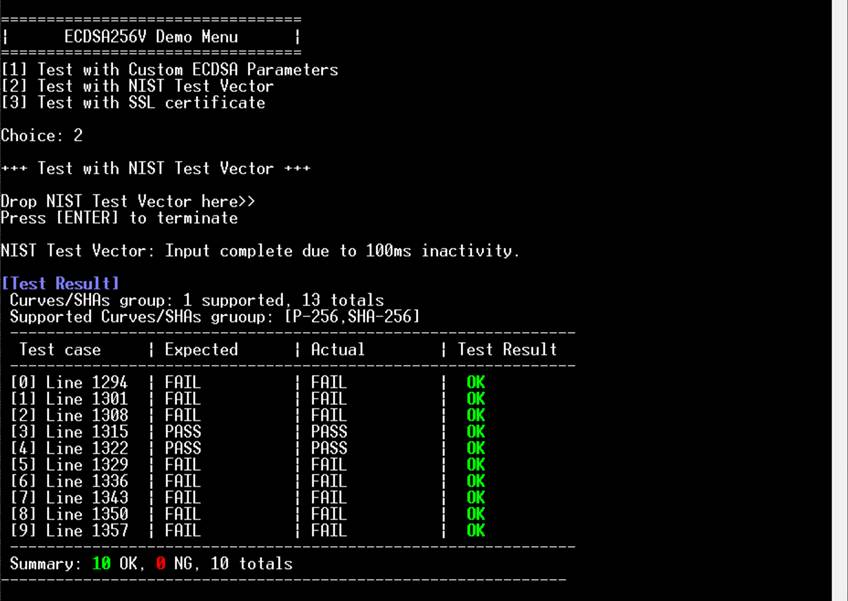
Figure 5 NIST test vector test mode
During the process, the demo parses the test cases from user input. If a group of test cases matches the supported curves (P-256) and hash algorithm (SHA-256), up to 10 test cases will be stored. For each test case, the public key and signature are provided to the ECDSA256V-IP, while the message is hashed by software before being used as input to the IP core.
After completing all tests, the results are displayed in a summary table as shown in Figure 5.
· Test case – Line number where the test case begins in the vector file.
· Expected – Expected verification result specified in the test vector.
· Actual – Verification result produced by the ECDSA256V-IP.
· Test Result – Comparison outcome: “OK” if expected and actual results match, or “NG” if they differ.
Note:
· Official test vectors can be downloaded from the NIST website:
· For convenience, the demo package includes a copy of these vectors under the 186-4ecdsatestvectors folder (last updated: 03-Oct-2025).
· The NIST package contains vectors for key generation, signature generation, and signature verification. For this demo, please use SigVer.rsp files. Other files may be entered through the console, but they do not contain verification cases.
· Since UART is configured at 115200 baud, large test files, such as 713 kB, may take about 60 seconds to transfer. Keep the terminal open until the upload is complete.
4.3 PEM Certificate Verification
This test mode demonstrates a real-world use case of ECDSA256V-IP. Users can input an SSL certificate in PEM format through the terminal. User can copy the PEM certificate and paste them into the terminal as shown in Figure 6. During data transmission, the demo displays the data received from the terminal. Users must wait for the data transfer to complete, indicated when the PEM certificate is printed out completely, and then press Ctrl+X to signal the end of the file.
The demo checks the algorithm and curve of each certificate in the chain and then verifies the certificate chain. Example PEM certificate files are included in the demo package for reference. After processing the chain, the verification results are displayed on the console as shown in Figure 7.
If any certificate in the chain is signed with an unsupported algorithm, the demo will skip that certificate and continue with the next one as shown in Figure 8.
When the certificate chain does not include a root certificate, the demo prompts the user to provide the root’s public key to verify the last certificate. The public key may be entered in uncompressed format, or the user can press ENTER to skip as shown in Figure 9.
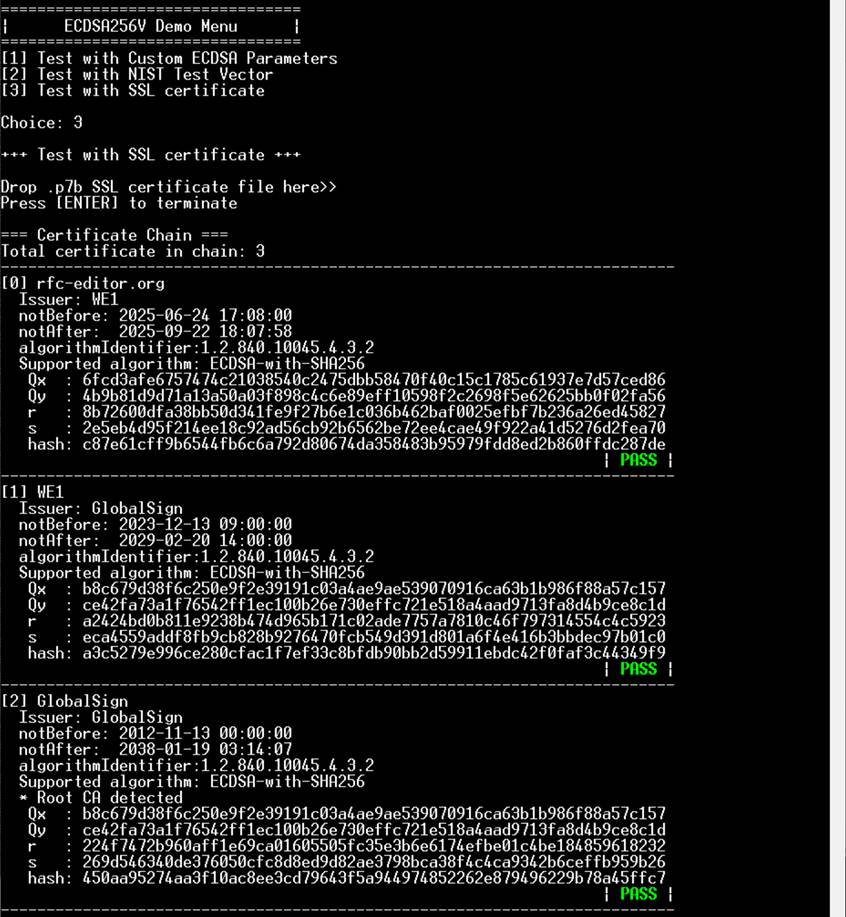
Figure 6 Verification of PEM Certificate Chain
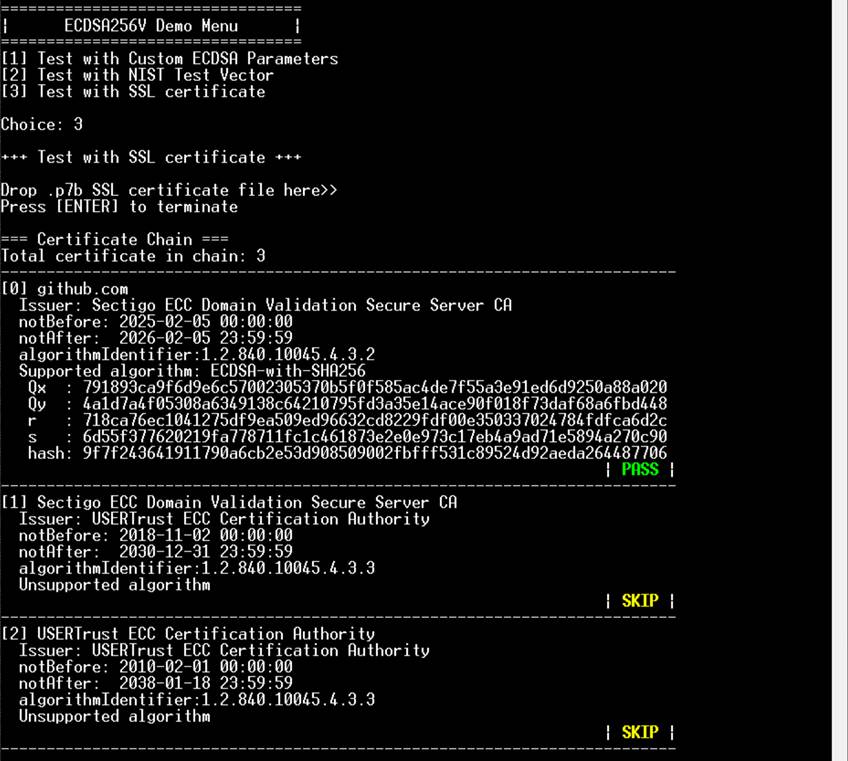
Figure 7 Verification of Certificate with Supported Algorithm
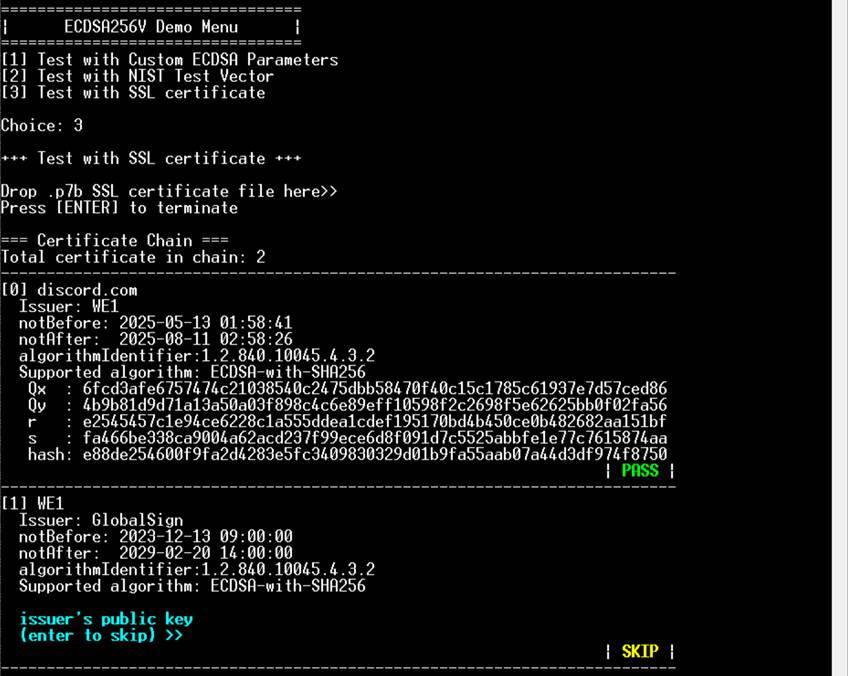
Figure 8 Verification of Certificate with Unsupported Algorithm
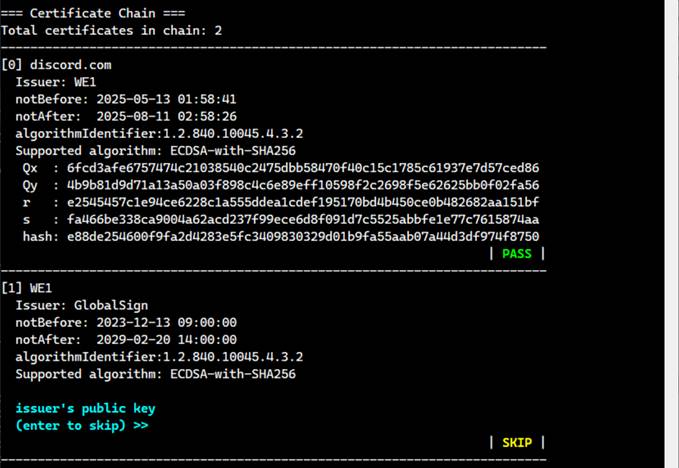
Figure 9 Verification of Certificate Chain without Root Certificate
5 Revision History
|
Revision |
Date (D-M-Y) |
Description |
|
1.01 |
02-Jun-26 |
Change certificate supported type from p7b to PEM format. |
|
1.00 |
10-Oct-25 |
Initial version release |