7.4 Load FPGA network parameters
7.8 Enable showsessionparams mode
This document provides detailed instructions to demonstrate the use of the QUIC Client 1Gbps IP core (QUIC1GC-IP) for 1 Gigabit Ethernet, referred to “QUIC1GC-IP Reference Design”, using the FPGA Evaluation Board. The QUIC1GC-IP is used as a medium to transfer data within a secure connection following the QUIC transport protocol version 1 standard (RFC9000). This process involves handling the TLS 1.3 handshake and dealing with data encryption and decryption.
The reference design uses the QUIC1GC-IP and manages the application layer of the IP. It is tailored to test the IP functionality, help users understand how to use the IP, and to offer flexibility for users in case they need to modify the design. There are two main applications demonstrated in this reference design: one is HTTP/3, as the application layer to streamline the HTTP data, and the other is a unique application protocol designed by an organization to use with their application.
This instruction will explain step-by-step how users can utilize the QUIC1GC-IP for uploading and downloading data from two examples. aioquic is the first example, used to perform as a server using the HTTP/3, and the results are similar to those achieved by a web browser. Also, MsQuic is employed as a server to show the transfer performance using the unique application protocol.
This document is structured into the following key topics to guide you through the demo:
1. Environment & PC Setup (Sections 1-2)
Covers hardware requirements and necessary network configurations on the host PC. Covers hardware requirements and necessary network configurations on the host PC.
2. Server Configuration (Sections 3-4)
Provides detailed setup for the aioquic (HTTP/3) and MsQuic (Performance) servers used in the demo.
3. FPGA, Command Operations and Interface (Sections 5-8)
Explains how to program the FPGA and how to interact with the IP core. This includes using the Serial Console for manual command entry and the Graphic User Interface (GUI) for a visual experience.
1 Environment Setup
To run the QUIC1GC-IP demo, please prepare following test environment.
1) FPGA development board.
2) Test PC with 1 Gigabit Ethernet or connecting with 1 Gigabit Ethernet card.
3) 1 Gb Ethernet cable: Cat5e or Cat6 cable to connect the FPGA to the PC
4) Micro USB cable for JTAG connection connecting between FPGA board and Test PC.
5) Vivado tool for programming FPGA installed on Test PC.
6) Serial console software such as TeraTerm installed on PC. The setting on the console is Baudrate=115200, Data=8-bit, Non-parity and Stop=1.
7) Demo configuration file (To download these files, please visit our website at www.design-gateway.com).
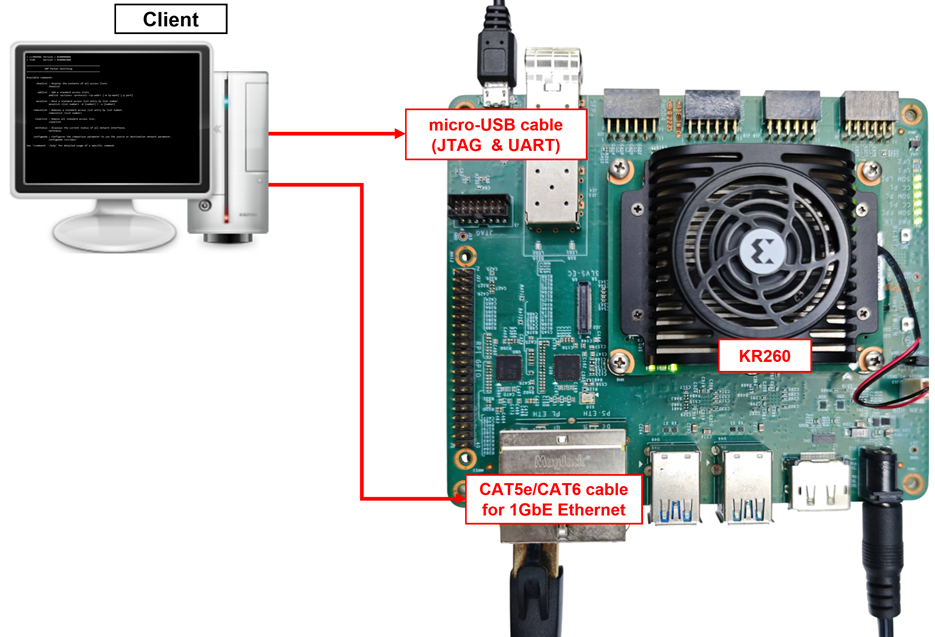
Figure 1 QUIC1GCIP demo environment on KR260 board
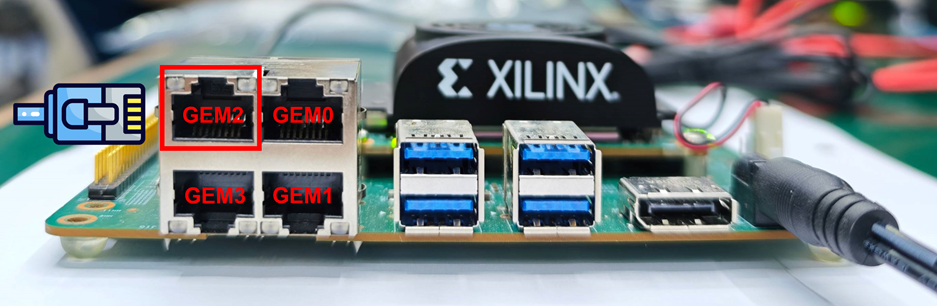
Figure 2 RJ45 GEM2 connector location on the KR260 board
2 PC Setup
Before running demo, please check the network setting on PC. The example of setting 1 Gb Ethernet connection is described as follows.
2.1 IP setting
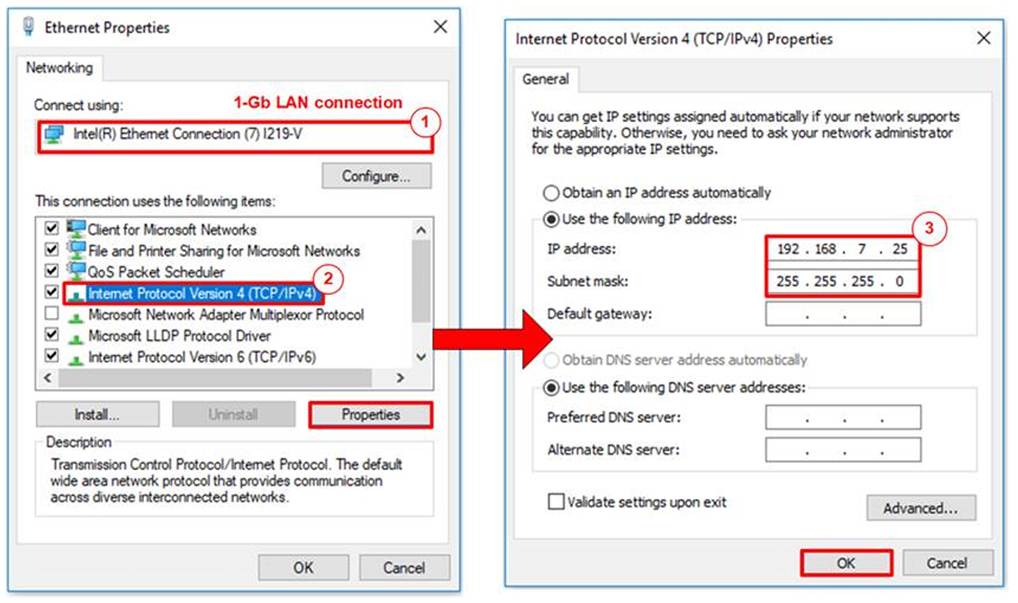
Figure 3 Setting IP address for PC
1) Open Local Area Connection Properties of 1 Gb connection, as shown in the left window of Figure 3.
2) Select “TCP/IPv4” and then click Properties.
3) Set IP address = 192.168.7.25 and Subnet mask = 255.255.255.0, as shown in the right window of Figure 3.
2.2 Speed and duplex settings
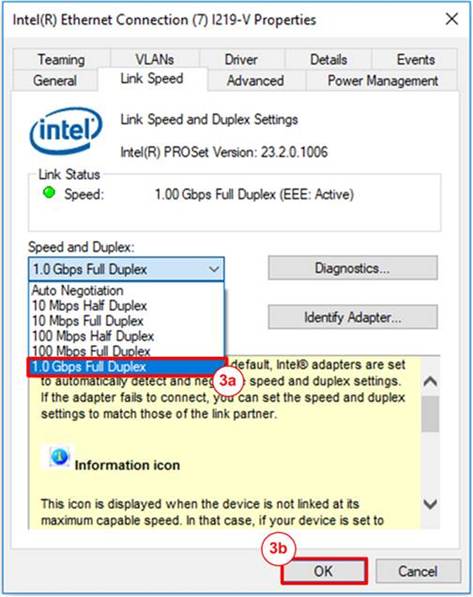
Figure 4 Set Link Speed = 1 Gbps
1) On Local Area Connection Properties window, click “Configure”, as shown in Figure 4.
2) On Advanced Tab, select “Speed and Duplex”. Set the value to “1.0 Gbps Full Duplex” for running 1 Gigabit transfer test, as shown in Figure 4.
3 aioquic server
aioquic is an open-source implementation of QUIC and HTTP/3 in Python. This demonstration is based on aioquic version 1.0.0*, which is available in our forked repository: github.com/design-gateway/aioquic.
Since QUIC1GC-IP supports two signature algorithms, rsa_pss_rsae_sha256 and ecdsa_secp256r1_sha256, the key and certificate must correspond to either
· an RSA key, or
· an ECDSA key using the secp256r1 curve.
In this demonstration, two example key and certificate pairs are provided. By default, the example files use RSA (tls_key.pem and tls_cert.pem).
For testing with ECDSA, alternative files are also provided as ecdsa_key.pem and ecdsa_cert.pem. To switch the aioquic server to use ECDSA, replace:
· tls_key.pem with ecdsa_key.pem
· tls_cert.pem with ecdsa_cert.pem
Note: The original aioquic can be found at: github.com/aiortc/aioquic.
To run this demonstration, the following modifications have been made to our fork:
1) Replaced ‘examples/templates/index.html’ (the default aioquic index page) with Design Gateway’s html file.
2) Added sample key and certificate files (tls_key.pem and tls_cert.pem) in the ‘tests/’ directory.
3) Added an html file, ‘tests/httpEcho.html’, to demonstrate one functionality of aioquic.
If you have any questions regarding the aioquic core implementation, please contact the aioquic development team directly.
3.1 Run aioquic
‘examples/http3_server.py’ is used as an example to run a QUIC demo server. To run this server, certain parameters are required, all of which you can find using the help command, as shown in Figure 5. This information shows the available options and usage instructions for the aioquic HTTP/3 server, allowing users to configure parameters such as the TLS certificate, private key, host address, port, and other settings relevant to the QUIC server operation.
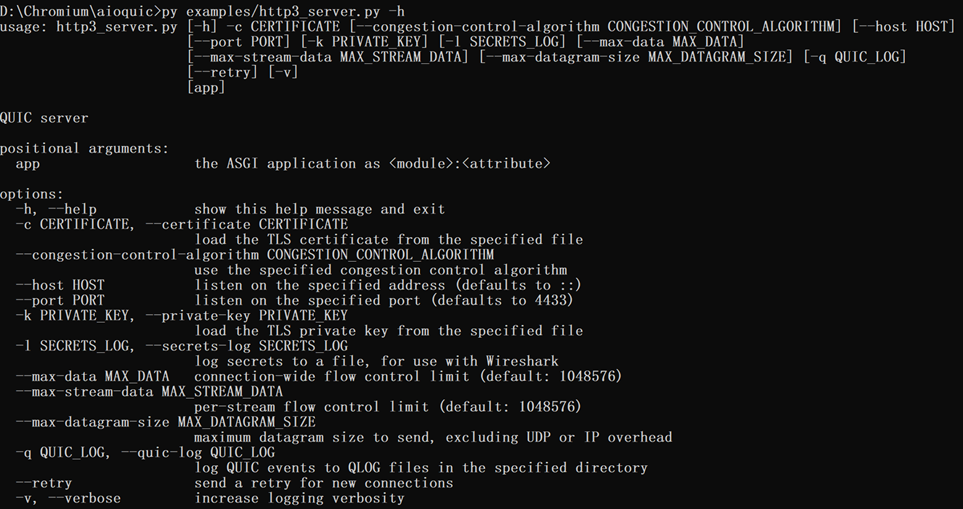
Figure 5 aioquic console with the help command
As depicted in, an aioquic server is operated by running the python file on the terminal with certain options. This example uses the provided key and certificate files, binds to an existed address on the machine, and logs the secrets in a text file.

Figure 6 Example of running the aioquic HTTP/3 server
3.2 Run Chrome web browser
A typical web browser can be used to communicate with the aioquic server. The process involves using the GET method to download data from the server and using the POST method to upload data to the server. To access the demo server running on the local machine, launch Chromium or Chrome with the following command:
<path to chrome.exe> --enable-experimental-web-platform-features \
--ignore-certificate-errors-spki-list=<SPKI> \
--origin-to-force-quic-on=<server ip:server port> \
url path

Figure 7 Example command line to run Chrome with aioquic server
The certificate used in this demonstration is self-signed, meaning it was not issued by a certification authority (CA). When attempting to access the server with a self-signed certificate, the web browser may generate a certificate unknown error and terminate the connection. To bypass certificate errors, users can run the Chrome browser from the command prompt with the ‘--ignore-certificate-errors-spki-list’ flag, specifying the certificate's SPKI (Subject Public Key Info). This allows Chrome/Chromium to accept the self-signed certificate as valid. Users can generate the SPKI with the following command:
openssl x509 -noout -pubkey -in tls_cert.pem |^
openssl pkey -pubin -outform der |^
openssl dgst -sha256 -binary |^
openssl base64

Figure 8 Example command line to calculate public key hash from certificate
When launching Chrome with the ‘--ignore-certificate-errors-spki-list’ flag, users may encounter a message indicating that Chrome is running with an unsupported command-line flag. The flag ‘--ignore-certificate-errors-spki-list’ is used to bypass SSL/TLS certificate errors by specifying a list of SPKI hashes. This can be useful for testing purposes but is not recommended for regular use due to potential security and stability risks.

Figure 9 Example of encountering the --ignore-certificate-errors-spki-list flag
Remark: Our tested web browser is Google Chrome version 146.0.7680.153.
3.3 Download with method get
The aioquic demo example supports HTTP/3, allowing users to download data from the aioquic server using a web browser via the GET method. To download data, the URL required as an input must follow this format:
https://ip:port/length
Where ip represents server’s IP address in dot-decimal notation.
port represents server’s port number.
length represents data length in byte (or leave blank to get the homepage).
For example, if the server’s IP address is 192.168.7.25 and the port number is 4433, the URL must be https://192.168.7.25:4433/ to establish a secure connection and display the aioquic homepage in the web browser, as illustrated in Figure 11.

Figure 10 aioquic console when the client downloads the homepage
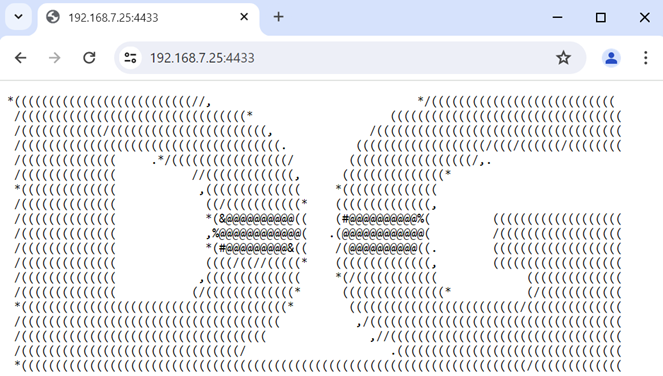
Figure 11 Download the index html using web browser
To download data with a specific length, user adds a size in byte unit at the end of the URL. For example, https://192.168.7.25:4433/500 is used as the URL to download 500-byte data, which will be displayed in the web browser, as shown in Figure 12.

Figure 12 Download data pattern shown in the web browser

Figure 13 aioquic console when the client downloads data pattern
3.4 Upload with method POST
aioquic also offers a method to upload data to an aioquic server. By using a web browser, an application named ‘httpEcho.html’ is provided for uploading data in a secure connection with an aioquic server.
Users can open the webpage of this application by simply dragging and dropping the html file into a browser. At this point, a user interface appears which allows users to set parameters, such as server’s IP address and port number, and to input the data message to be uploaded to the server, as shown in Figure 14. After setting the inputs, users press the “Send” button in order to send a POST command to the aioquic server with the URL endpoint “/echo”.
Although the aioquic doesn’t support a direct POST method by showing the data message at their side, it returns the data message back to the sender, the web browser in this case. As a result, the echoed data is displayed in the web browser, as depicted in Figure 15.
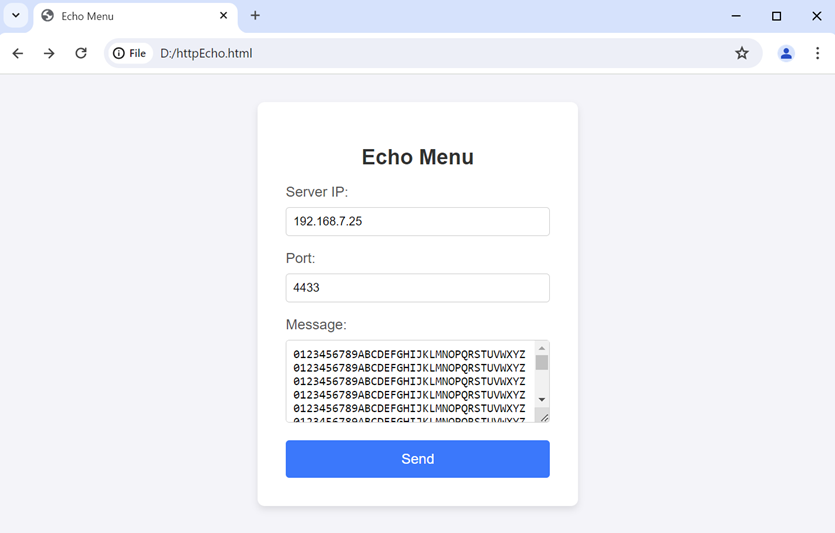
Figure 14 Upload a message via a web browser
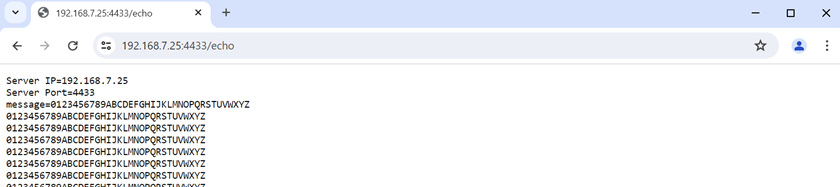
Figure 15 Echo Data from the aioquic server shown in the web browser

Figure 16 aioquic console when the client uploads data
4 MsQuic server
The second QUIC implementation used in this reference design is MsQuic, an open-source project developed by Microsoft, written in C and available at github.com/microsoft/msquic. This demo utilizes MsQuic version 2.3.5. We would like to express our gratitude to Microsoft and the MsQuic team for their contributions to the QUIC ecosystem.
While no modifications to the original MsQuic code are required to run this demo, we provide a fork of the repository as a reference branch here: github.com/design-gateway/msquic. Please note that technical inquiries regarding the MsQuic core should be directed to the official MsQuic development team.
The secnetperf Application
Among the various examples offered by MsQuic, this demo uses the 'secnetperf' application. It is specifically optimized for high-performance data transfer and utilizes its own dedicated application protocol rather than HTTP/3.
To set up and run the MsQuic server using secnetperf, follow these steps:
1. Execution: Run secnetperf.exe using three required parameters:
· IP Address: The address the server will bind to.
· Port Number: The port the server will listen on.
· Profile Setting: Configured for maximum performance in this demo.
2. Verification: Once executed, the console will display the message “Started!”. No further messages will appear unless an error occurs.
The example of command execution and successful start of the MsQuic server are illustrated in Figure 17.

Figure 17 MsQuic server application console
Once the server is started, a client running the secnetperf application can be connected. In this example, the client is executed using five primary options:
· -target: Specifies the IP address of the server to connect to.
· -port: Specifies the Port number of the server to connect to.
· -exec: Must match the server’s execution profile setting.
· -upload / -download: Specifies the data length for the upload or download test.
· -ptput: Enables the printing of throughput information.
The console output for an MsQuic client uploading data to the server is illustrated in Figure 18, while the output for downloading data from the server is shown in Figure 19.

Figure 18 MsQuic client application console uploading data

Figure 19 MsQuic client application console downloading data
5 QUIC1GC demo setup
1) Make sure the power switch is off and connect power supply to FPGA development board.
2) Connect two USB cables between the FPGA board and PC via micro-USB ports.
3) Power on the system.
4) Download the configuration file and firmware to the FPGA board by the following steps,
a) Open a Xilinx XSCT.
b) Change the current directory to the download folder where the demo configuration file is located.
c) Run tcl script to program bit file, as shown in Figure 20.
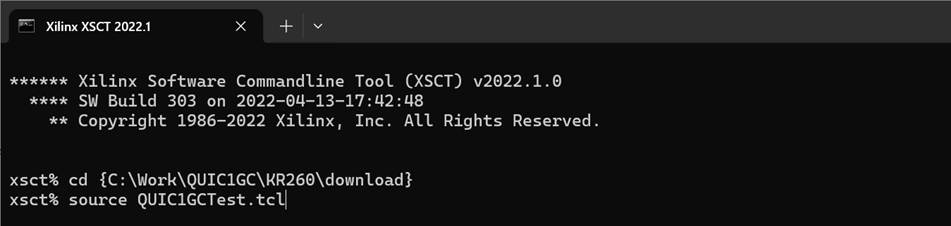
Figure 20 Example command script to download the configuration file on KR260
6 Serial Console
Users can set the parameters or run the download and upload applications by using the following commands. The QUIC1GC demo commands and their usages will be displayed, as shown in Figure 21. Detailed information about each command is described in topic 7.
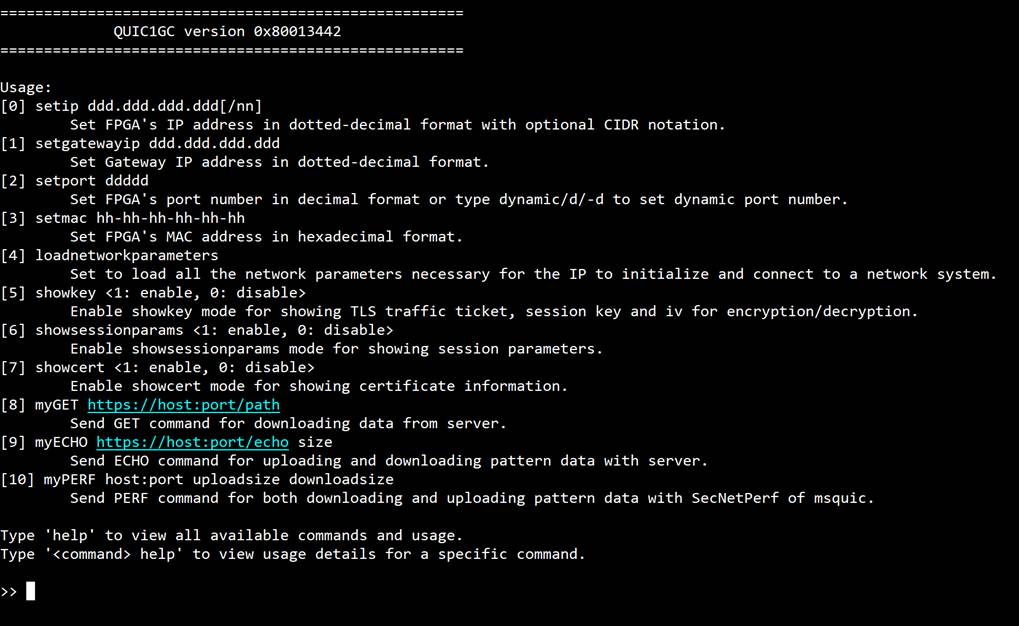
Figure 21 Serial console
7 Command detail
7.1 Set Gateway IP address
command> setgatewayip <ddd.ddd.ddd.ddd>
This command is used to set the Gateway IP address in dotted-decimal format. The default Gateway IP address is 0.0.0.0, which indicates to the IP that there is no valid Gateway IP address. Users can input the setgatewayip command followed by a valid IP address, as shown in Figure 21.
7.2 Set FPGA IP address
command> setip <ddd.ddd.ddd.ddd>[/nn]
This command is used to set the FPGA’s IP address in dotted-decimal format, with an optional subnet mask in CIDR notation. The default FPGA IP address is 192.168.7.42/24. Users can input the setip command followed by a valid IP address (e.g., 192.168.7.42) or an IP address with a CIDR suffix (e.g., 192.168.7.42/24), as shown in Figure 21. If the CIDR value is omitted, the default subnet mask of /24 is applied.
7.3 Set FPGA MAC address
command> setmac <hh-hh-hh-hh-hh-hh>
This command is used to set the FPGA’s MAC address in hexadecimal format. The default FPGA’s MAC address is 80-11-22-33-44-55, which is a unicast MAC address.
7.4 Load FPGA network parameters
command> loadnetworkparameters
This command is used to load all the network parameters necessary for the IP to initialize and connect to a network system. These include the Gateway IP address, FPGA’s IP address, and FPGA’s MAC address. The QUIC1GC-IP must have all network parameters loaded at least once after a power-on reset or when the IP core system reset is active.
7.5 Set FPGA port number
command> setport <ddddd>
This command is used to set the static port number of FPGA in decimal format. By default, the FPGA’s port number is set to be dynamic. Dynamic ports range from 49152 to 65535. Users can enable dynamic port again after specifying a port number by using “setport dynamic” command, as shown in Figure 21. It is worth noting that this command is not listed in the necessary network parameters, and therefore, it can be used to change the port number at any time before opening connection.
7.6 Enable showkey mode
command> showkey <1: enable, 0: disable>
This command is used to enable the showkey mode. When the showkey mode is enabled, the TLS traffic ticket for encryption/decryption is displayed on the serial console, as shown in Figure 22. Users can utilize the TLS traffic ticket in the (Pre)-Master-Secret log file for Wireshark*, enabling them to decrypt transferred data between the client and server.
*Wireshark, a network packet analyzer tool used for network troubleshooting, analysis, and security purposes.

Figure 22 Serial console when the showkey mode is enabled
7.7 Enable showcert mode
command> showcert <1: enable, 0: disable>
This command is used to enable the showcert mode. When the showcert mode is enabled, the server’s certificate stored in RAM called CertRam is displayed on the serial console, as shown in Figure 23. The certificate information is displayed in hexadecimal format, which corresponds to the result obtained by using openssl command: openssl x509 -in tls_cert.pem -outform der | hexdump -C, as shown in Figure 24.
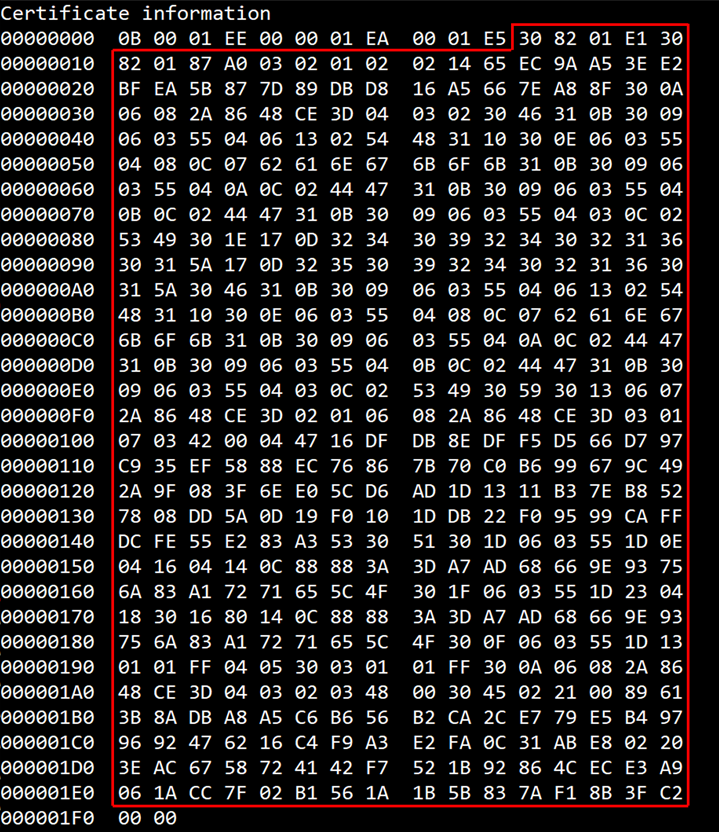
Figure 23 Serial console when the showcert mode is enabled
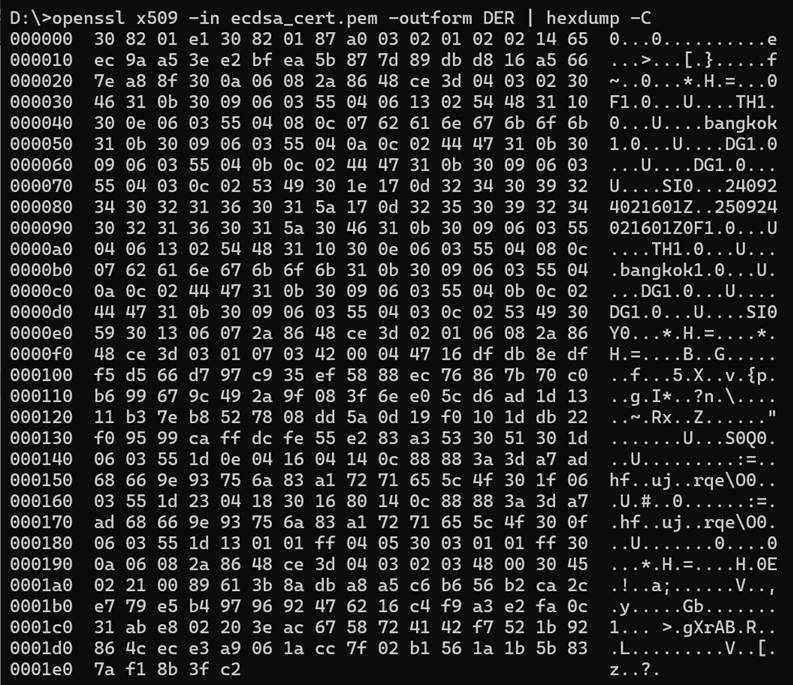
Figure 24 Certificate information from the openssl command
7.8 Enable showsessionparams mode
command> showsessionparams <1: enable, 0: disable>
This command is used to enable the session parameter display mode. When the showsessionparams mode is enabled, the negotiated QUIC transport parameters and session resumption ticket are displayed on the serial console after a successful handshake, as shown in Figure 25. Users can utilize this information to verify the 0-RTT resumption parameters stored for future connections and debug QUIC transport layer configuration.
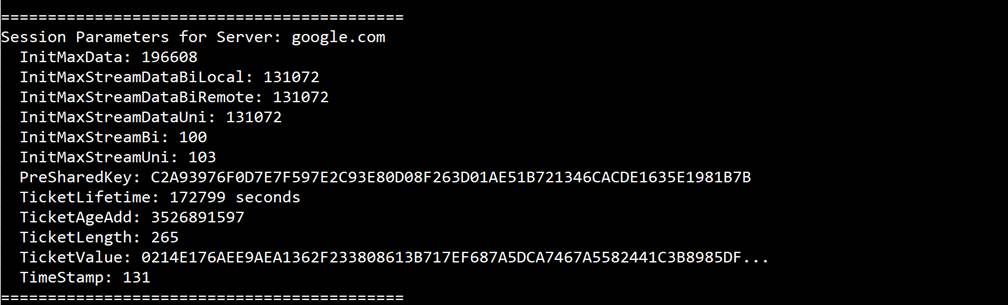
Figure 25 Serial console when the showsessionparams mode is enabled
7.9 GET method
command> myGET https://<hostname>[:port]/[urlpath]
Where hostname represents the server’s domain name or IP address in dot-decimal notation
port represents the server’s port number
urlpath represents the path to the desired resource on the server
This command simulates the HTTP/3 GET method to request a resource from the server. The myGET function is called to extract the server’s IP address and the server’s port number.
If the user specifies a domain name as the hostname and it matches an existing hostname-to-IP mapping, the corresponding IP address from the table is used and the hostname is set as server name indication (SNI) for QUIC1GC. If no match is found, the function prompts the user to manually enter the IP address. This IP address is then used as the network parameter and saved into the hostname-to-IP mapping for future use. If the user does not specify a port number, a default value “443” is used.
For testing with aioquic server, the length of the download data can be specified at urlpath. If the length parameter is left blank, the aioquic server will return the homepage, and the received data will be displayed on the serial console, as shown in Figure 26.
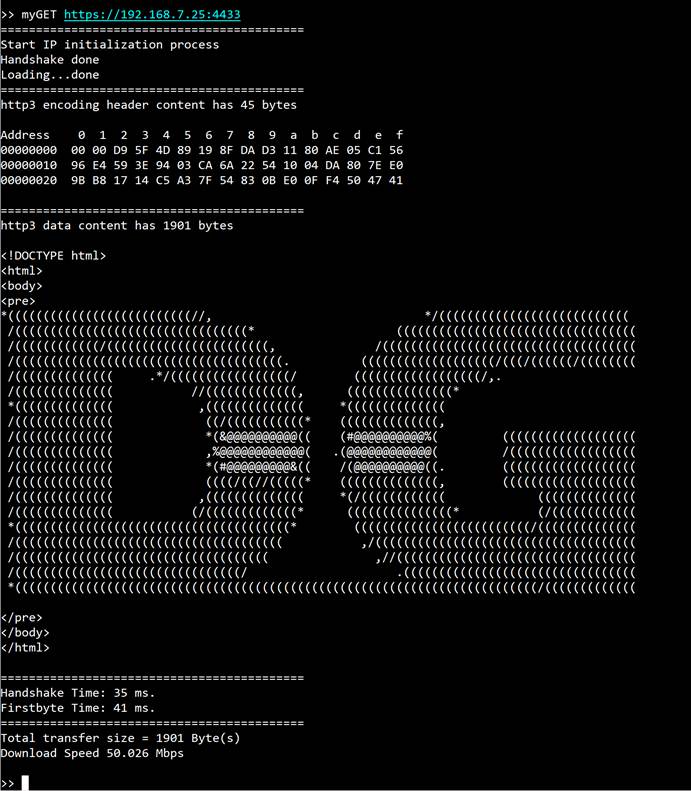
Figure 26 Serial console when downloading the homepage
On the other hand, if the length parameter is specified, the aioquic server will be requested to return data of the specified length. Once the data is downloaded, it will be displayed on the serial console, as shown in Figure 27, with the following limitation: if the total received data exceeds 4kB (4096 bytes), only the first 4096 bytes will be displayed. In all cases, the total length of the received data and the download speed will be displayed on the serial console.
Due to the aioquic specification, the maximum data length is capped at 50MB for testing with the aioquic server. If users request to download data exceeding this limit, the software will retrieve only 50MB from the server.
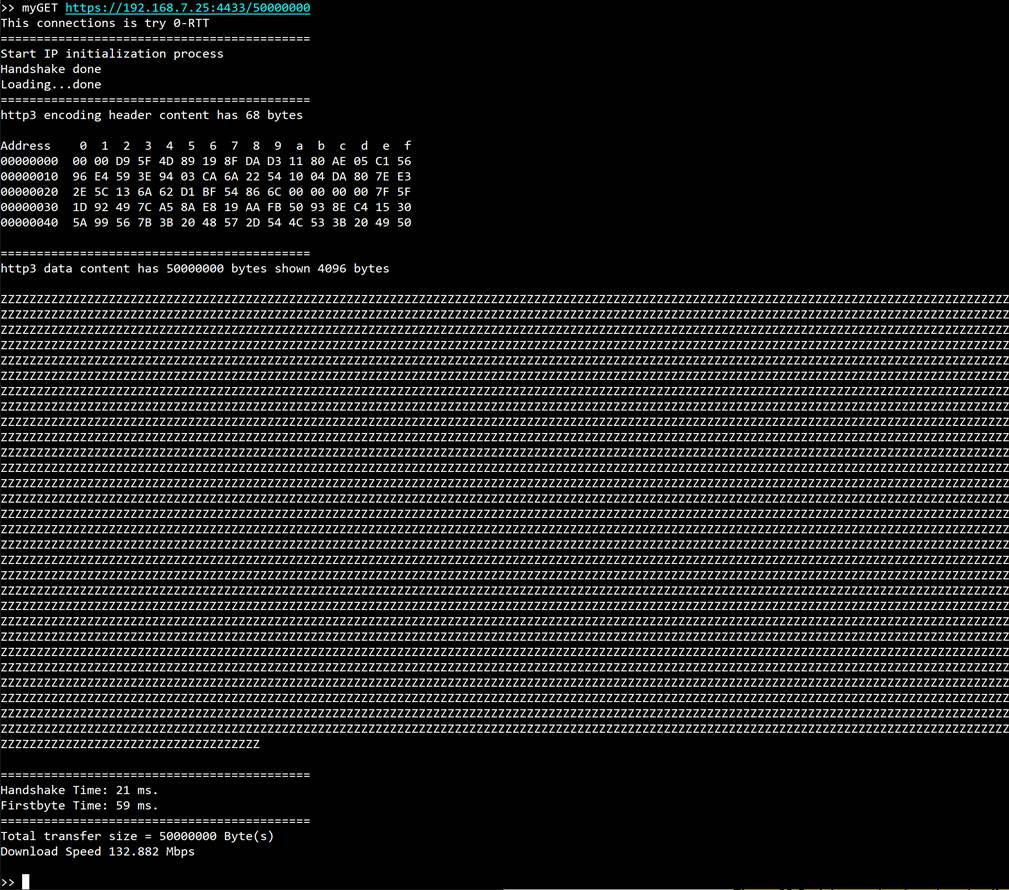
Figure 27 Serial console when downloading large data
For testing with general server, QUIC1GC for 1GbE demo will display the received data on the serial console, as shown in Figure 28.
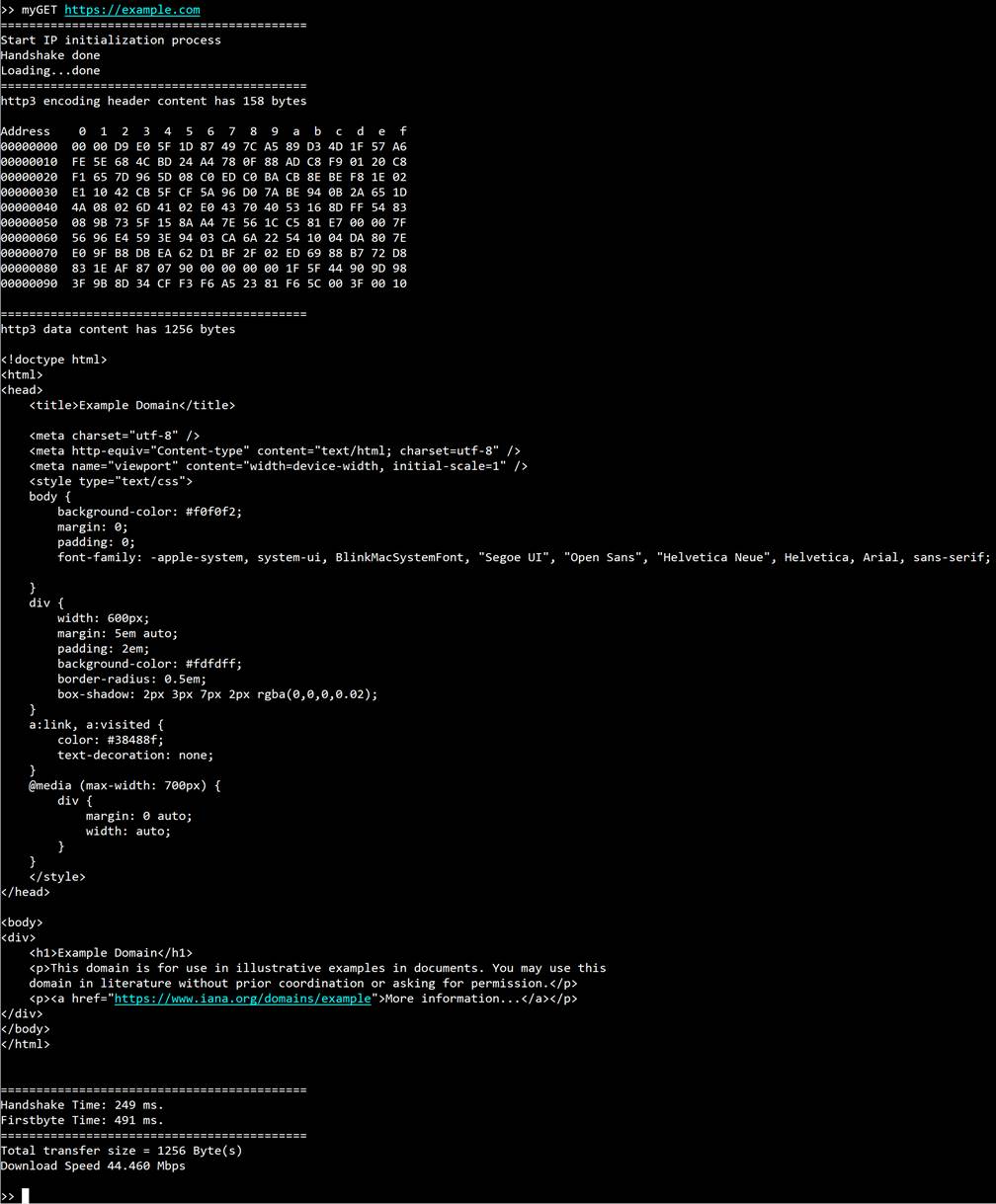
Figure 28 Serial console when downloading webpage
7.10 POST method
command> myECHO https://<ip:port>/echo <length>
This command simulates the POST method of HTTP/3 to upload data to the aioquic server. The URL structure for running the POST method is similar to the GET method with the exception that the transfer length is replaced by a string of “echo”. Users can instead specify the length of the uploading data, which is an 8-bit counting pattern, in another option. After the upload is completed, the aioquic server will return what it has received. This allows the users to verify the received data from the aioquic server. By enabling the verification feature, it monitors whether the received data matches the expected pattern or not, and after verifying it, the data content, transfer length, and transfer speeds are displayed, as shown in Figure 29 and Figure 30.
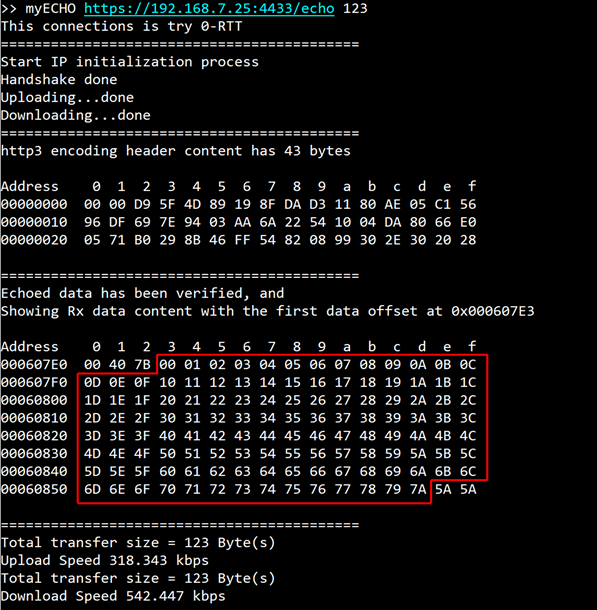
Figure 29 Serial console when uploading small data
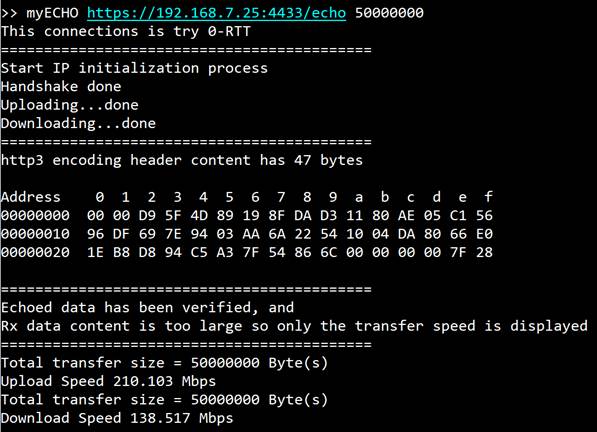
Figure 30 Serial console when uploading large data
7.11 PERF method
command> myPERF <ip:port> <uploadlength> <downloadlength>
This command is designed to run with the “secnetperf” example of an MsQuic server. There are three parameters required to run this command – the first option is the server’s IP address and server’s port number separated by a colon, the second is the length of the upload data, and the last one is the length of the download data.
Specifically, this application protocol is designed to have the client transferring the upload data firstly, after which the client receives the download data from the server. Similar to the POST method, the verification feature is used to monitor the received data, and the results, such as the download content, the transfer length, and the transfer speeds, are presented, as shown in Figure 31. It is also important to note that the performance of this operation depends on the network system and the resources available on the test machine.
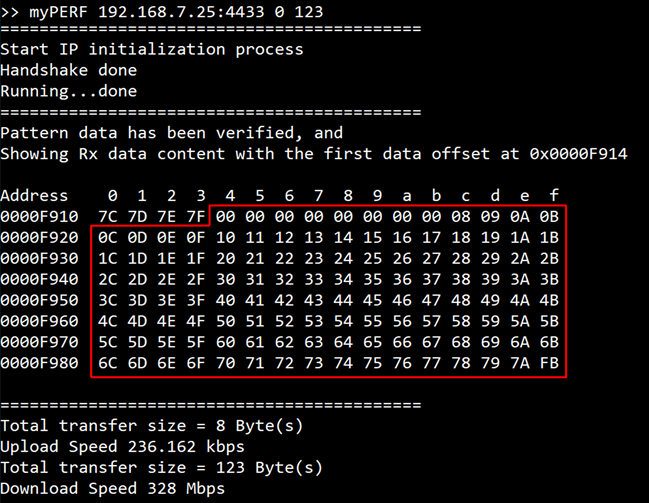
Figure 31 Serial console when downloading small data
Figure 31 is not a good example to represent the transfer performance because the operation time is too small for accurate calculation. Figure 32, however, can be used to show the transfer speeds for both upload and download because the transfer size settings are large enough.
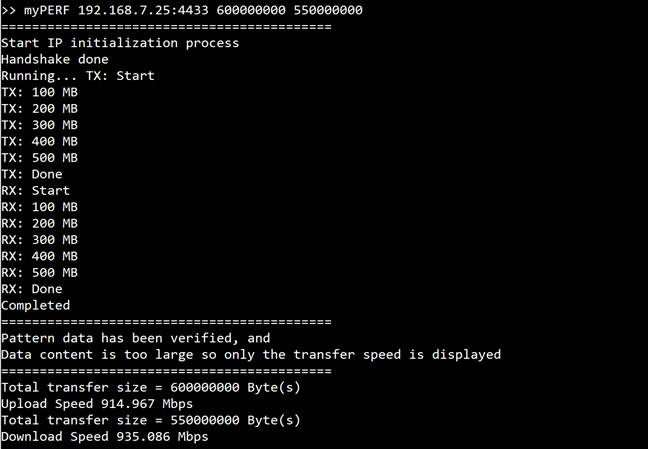
Figure 32 Serial console when downloading large data
8 Graphic user interface
To visualize the use of the QUIC1GC-IP, QUIC1GCDemo-GUI.exe and config.json are provided. The GUI allows users to easily interact with the QUIC1GC-IP through the provided buttons and view transfer results based on issued commands and received data in the right panel.
In addition, users can interact with the QUIC1GC-IP via a command-line interface, similar to the Serial Console, in the left panel as shown in Figure 33.
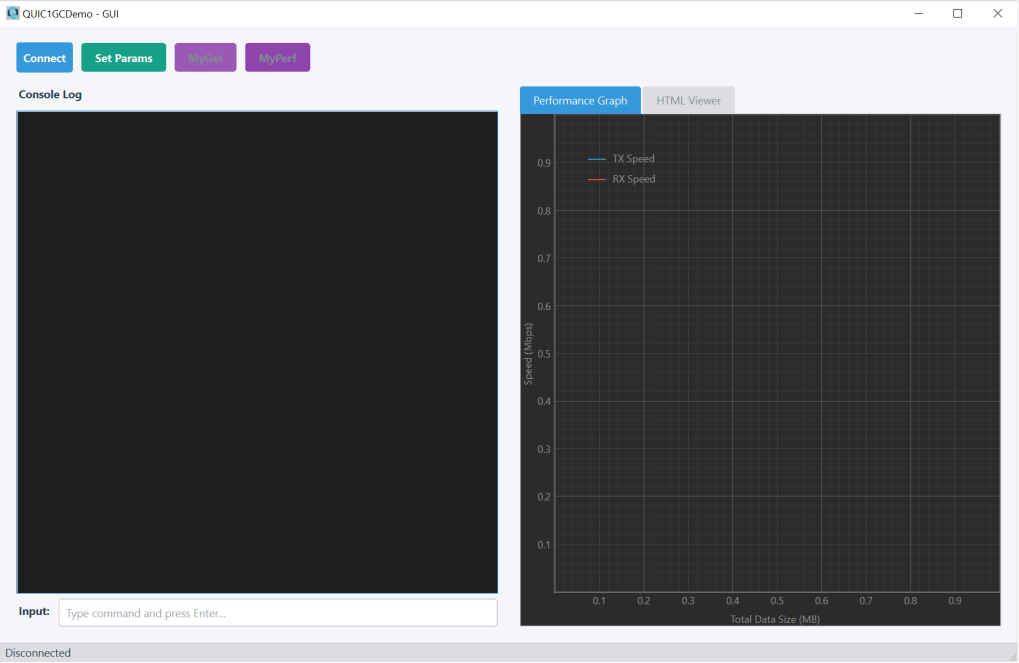
Figure 33 QUIC1GCDemo-GUI window
Note: To support custom application development, the Python source code for the GUI (QUIC1GCDemo-GUI.py) is provided as a reference example. Users may use this code to understand how to interface with the QUIC1GCdemo or modify it to create their own custom application interface. Please note that Design Gateway does not take responsibility for any issues arising from user-modified code.
8.1 Connect with FPGA device
To establish a connection with the FPGA:
1) Ensure the cable_setting in config.json is correctly configured (e.g., “USB-BlasterII [USB-1]” for JTAG-UART or “COMx” for Serial).
2) Click the “Connect” button in the top control bar.
3) The status bar at the bottom will display “Connected (JTAG-UART)” or “Connected (Serial COMx)” upon success.
4) Once connected, the button label changes to “Disconnect”, and the “MyGet” and “MyPerf” buttons become enabled.
As shown in Figure 34, in this example, “cable_setting” in config.json is set to COM5. The application connects to the FPGA device via a Serial connection and displays “Connected (Serial COM5)” in the status bar at the bottom of the window.
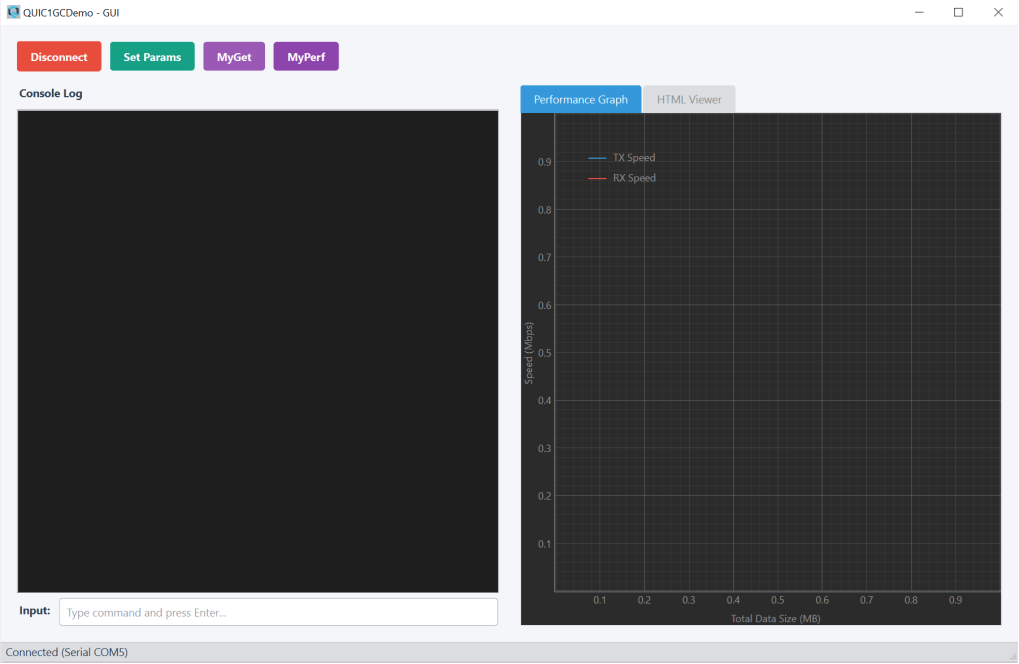
Figure 34 QUIC1GCDemo-GUI device connection
8.2 Set demo parameters
Before running tests, the network and test parameters must be initialized:
1) Review and edit the network settings and test parameters in config.json.
2) Click the “Set Params” button.
3) The software reloads the configuration from the file and automatically sends the following initialization commands to the FPGA: setip, setgatewayip, setport, setmac, and loadnetworkparameters.
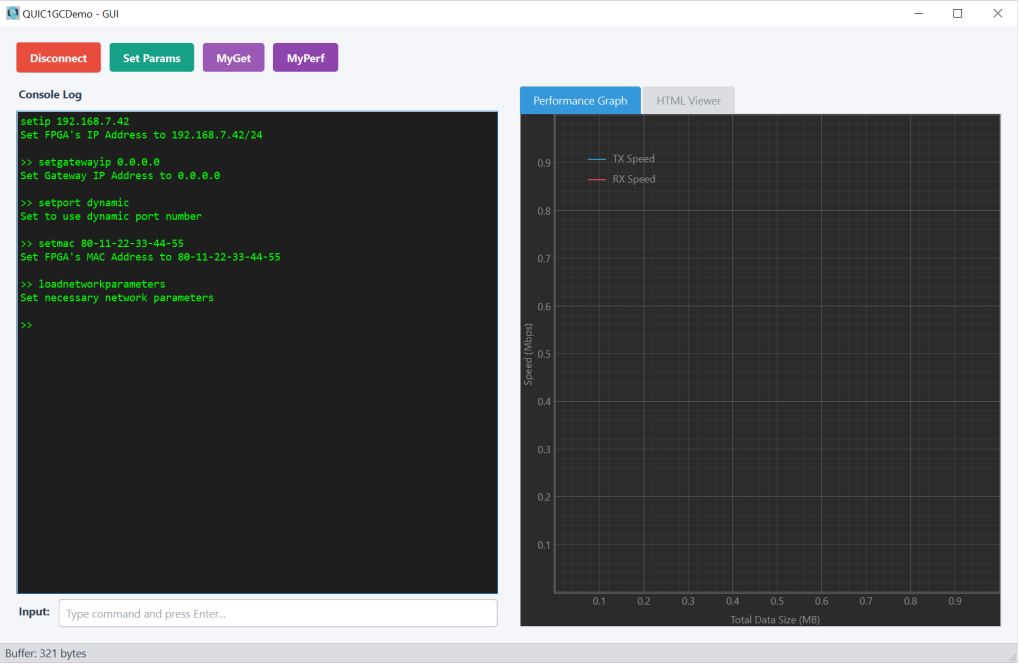
Figure 35 QUIC1GCDemo-GUI parameters setting
8.3 Test with myget command
The “MyGet” command is used to test HTTP/3 request/response functionality:
1) Click the “MyGet” button.
2) The software sends a request to the URL specified by “myget_url” in the configuration file loaded when the “Set Params” button is clicked.
3) Upon detecting the command, the GUI automatically switches the right panel to the HTML Viewer tab.
4) The received HTML content is extracted from the terminal stream and rendered in the HTML viewer. If the received data does not conform to HTML format, “Cannot show html page” is displayed in the right panel instead.
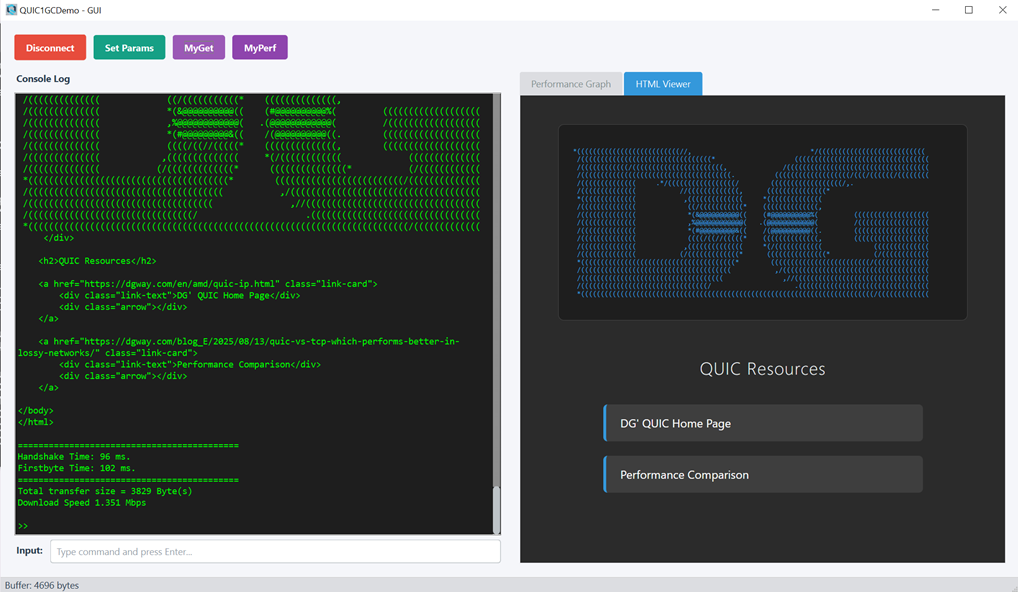
Figure 36 QUIC1GCDemo-GUI MyGet command
Note: To browse a URL that is not specified in config.json, the user can manually enter the myget command with the desired URL in the input box, similar to entering commands in the Serial Console.
8.4 Test with myperf command
The “MyPerf” command is used to measure network throughput:
1) Click the “MyPerf” button.
2) The software sends a performance test command using the TX and RX data lengths specified in config.json, which is loaded when the “Set Params” button is clicked.
3) The GUI automatically switches the right panel to the Performance Graph tab.
4) As the test runs, the software parses the “TX: X MB” and “RX: X MB” progress messages in real-time.
5) The graph plots the average speed (Mbps) against the total data size (MB), providing a live visualization of the transfer speed.
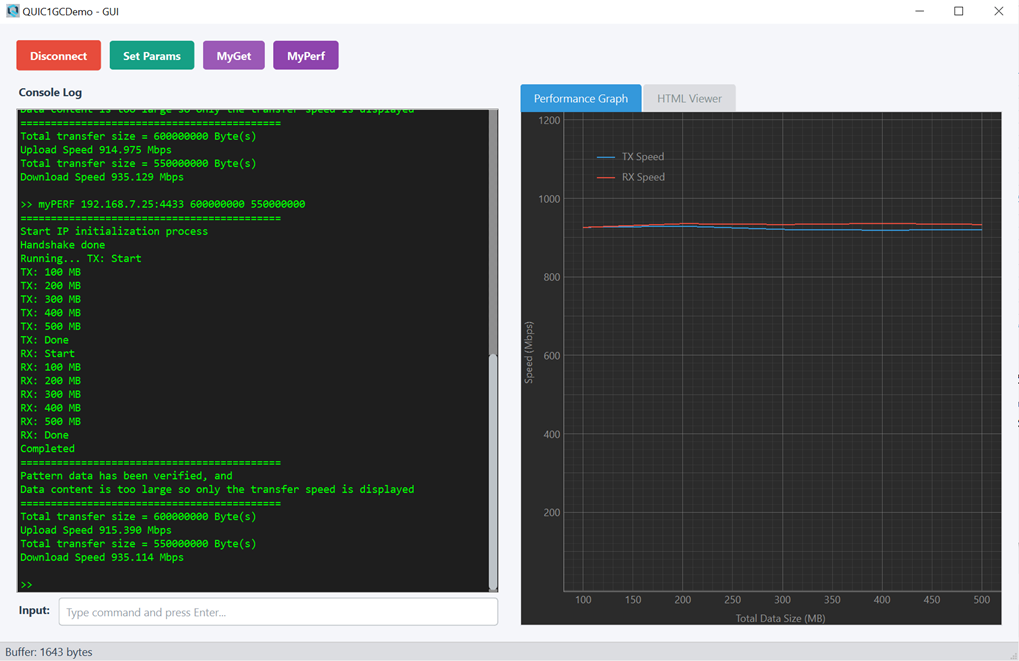
Figure 37 QUIC1GCDemo-GUI Myperf command
Note: The user can manually enter the myperf command with a different server or data size in the input box, similar to using the Serial Console.
9 Revision History
|
Revision |
Date (D-M-Y) |
Description |
|
1.00 |
31-Mar-26 |
Initial version release |